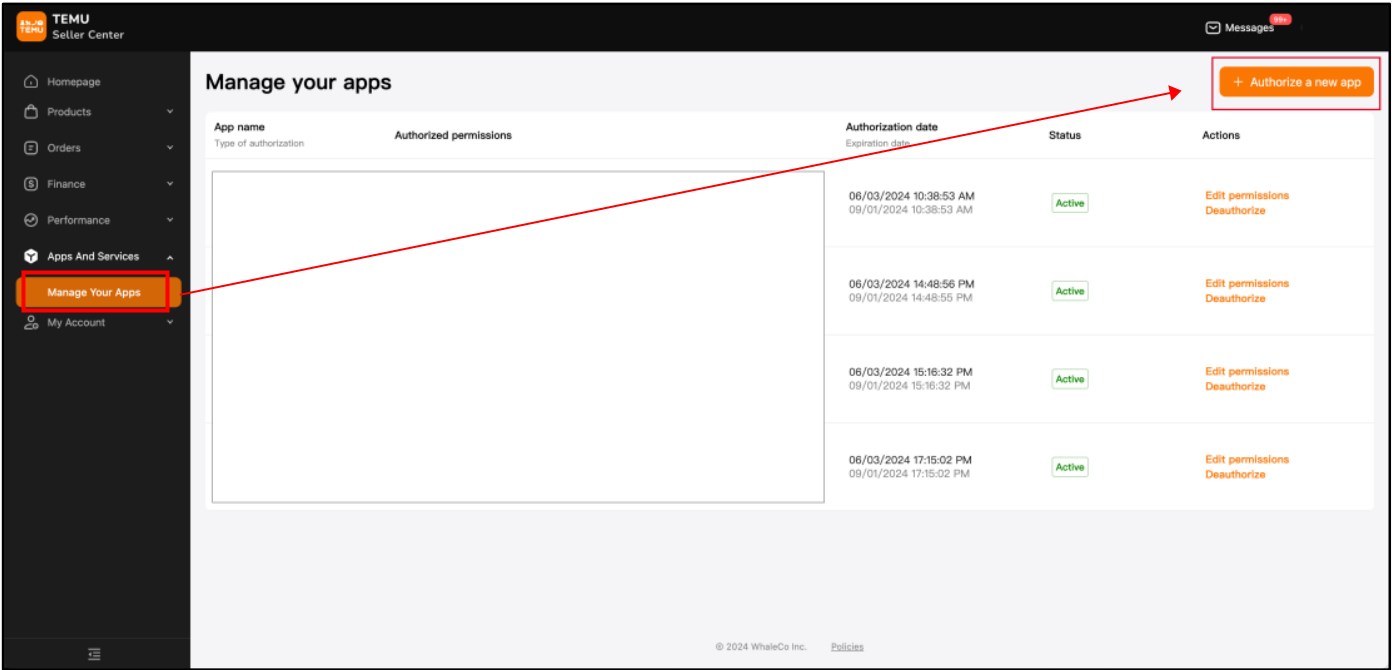
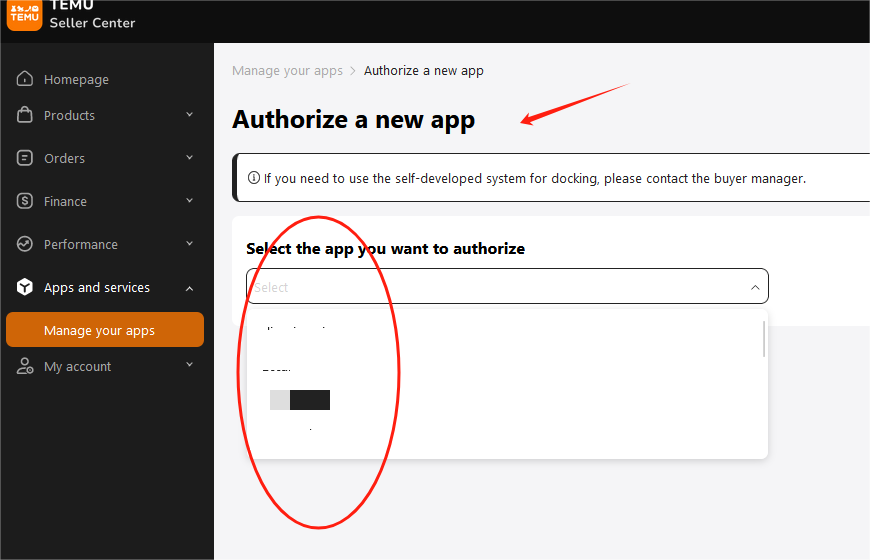
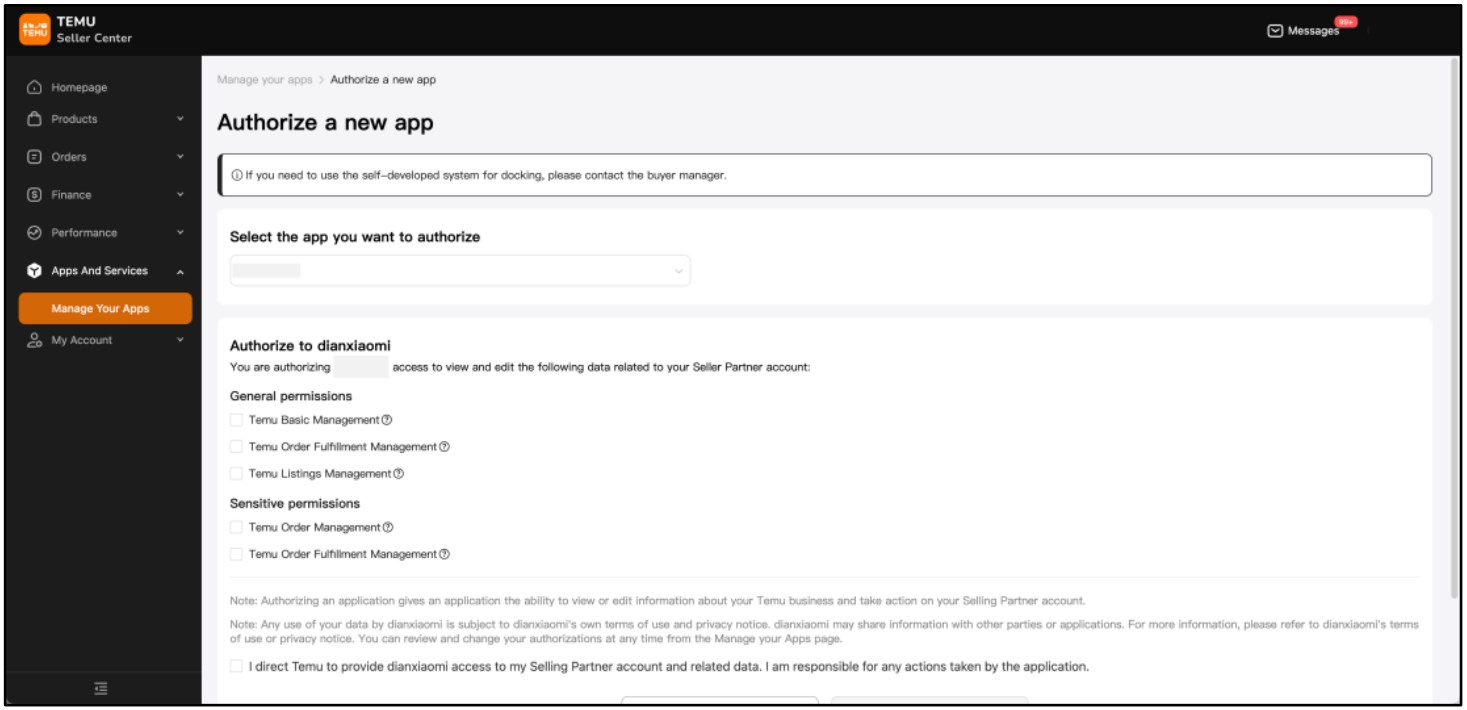
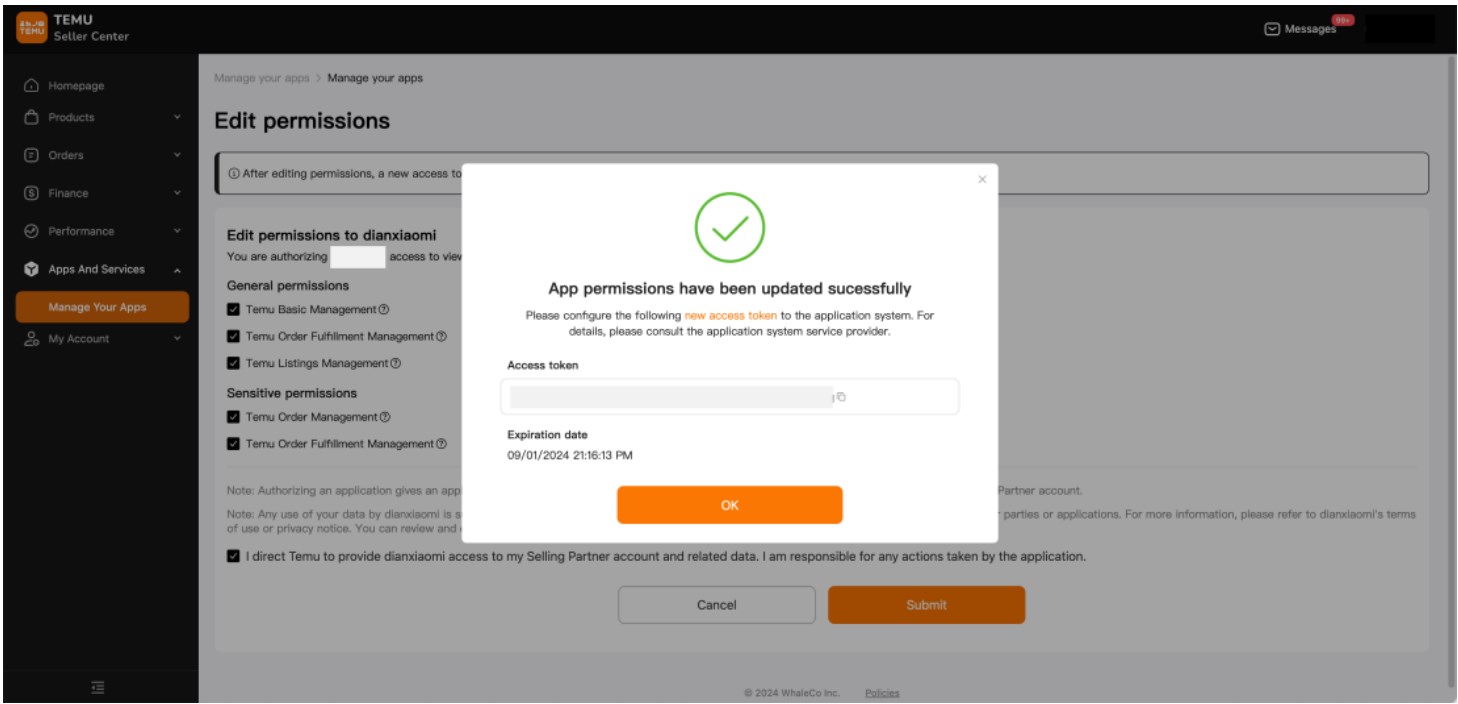
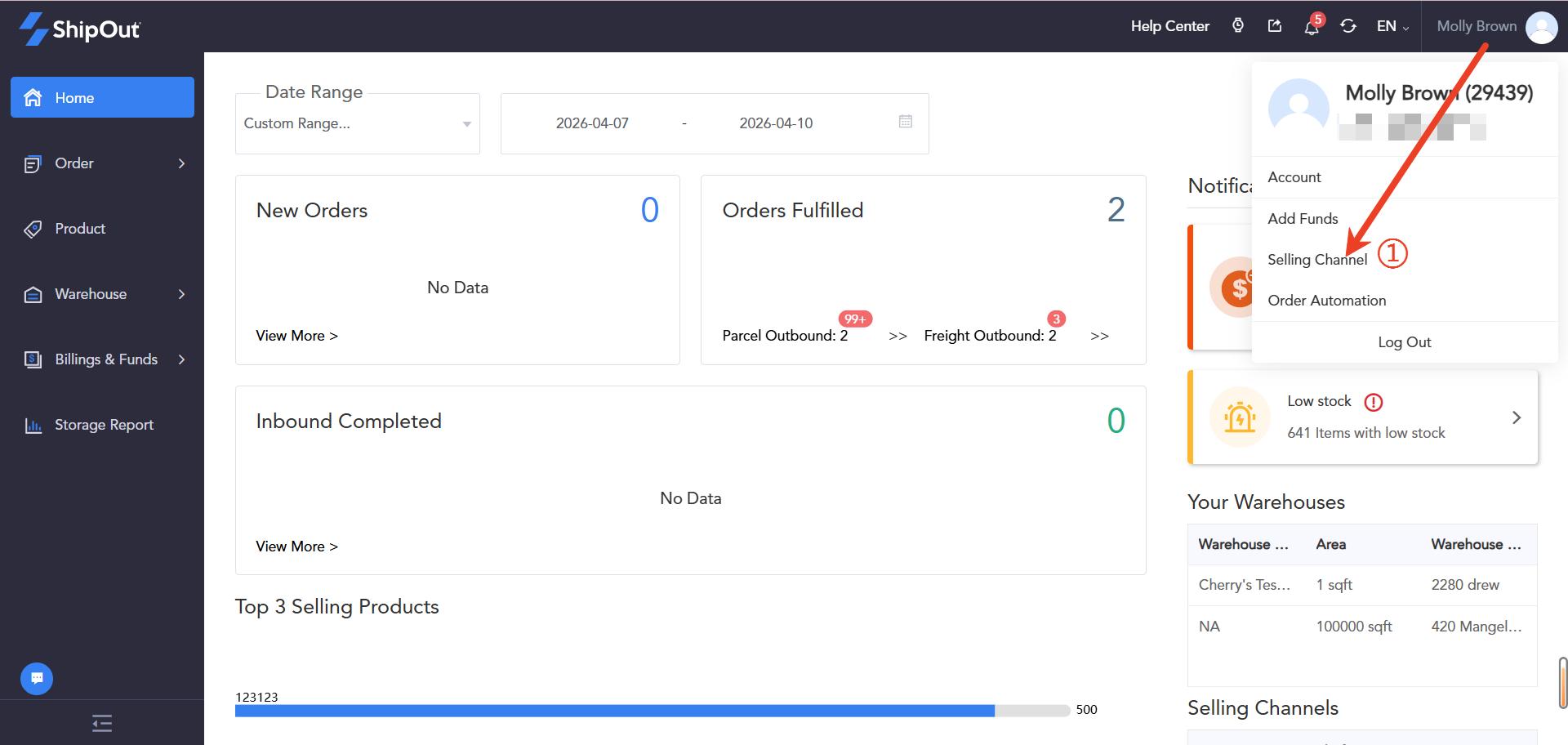
Click on Selling Channel in the upper right corner
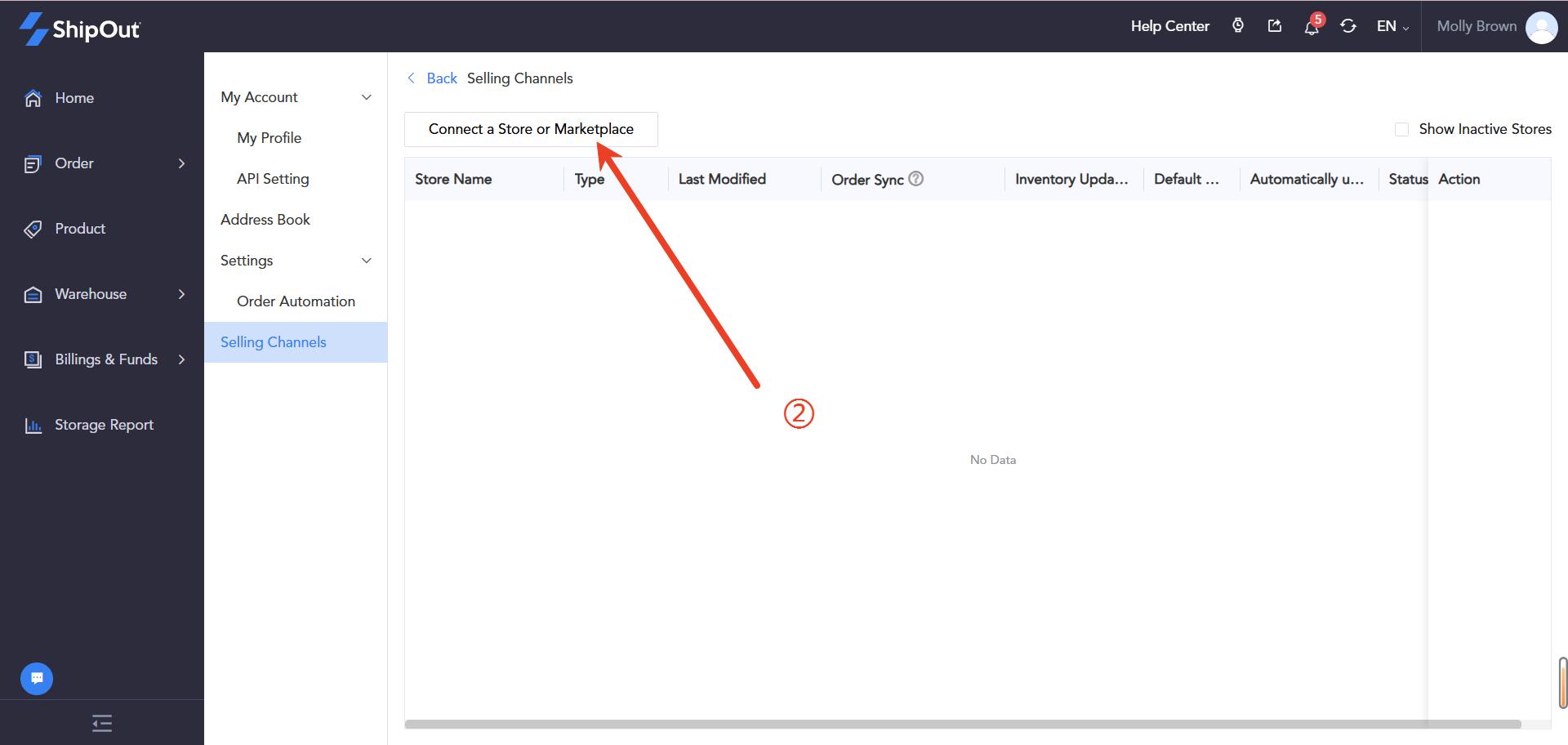
3. Click on Connect Store or Marketplace
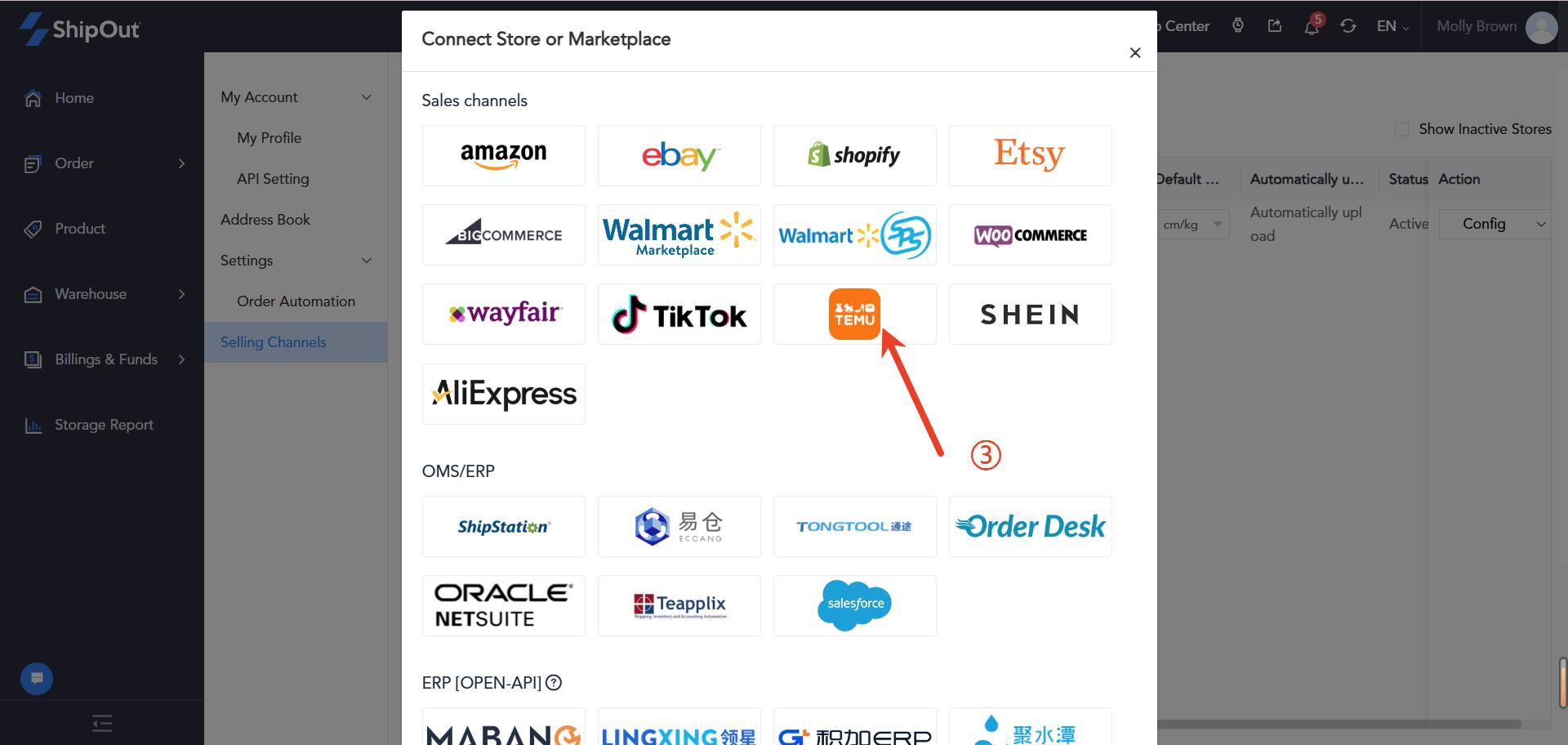
4.Select the Temu Logo
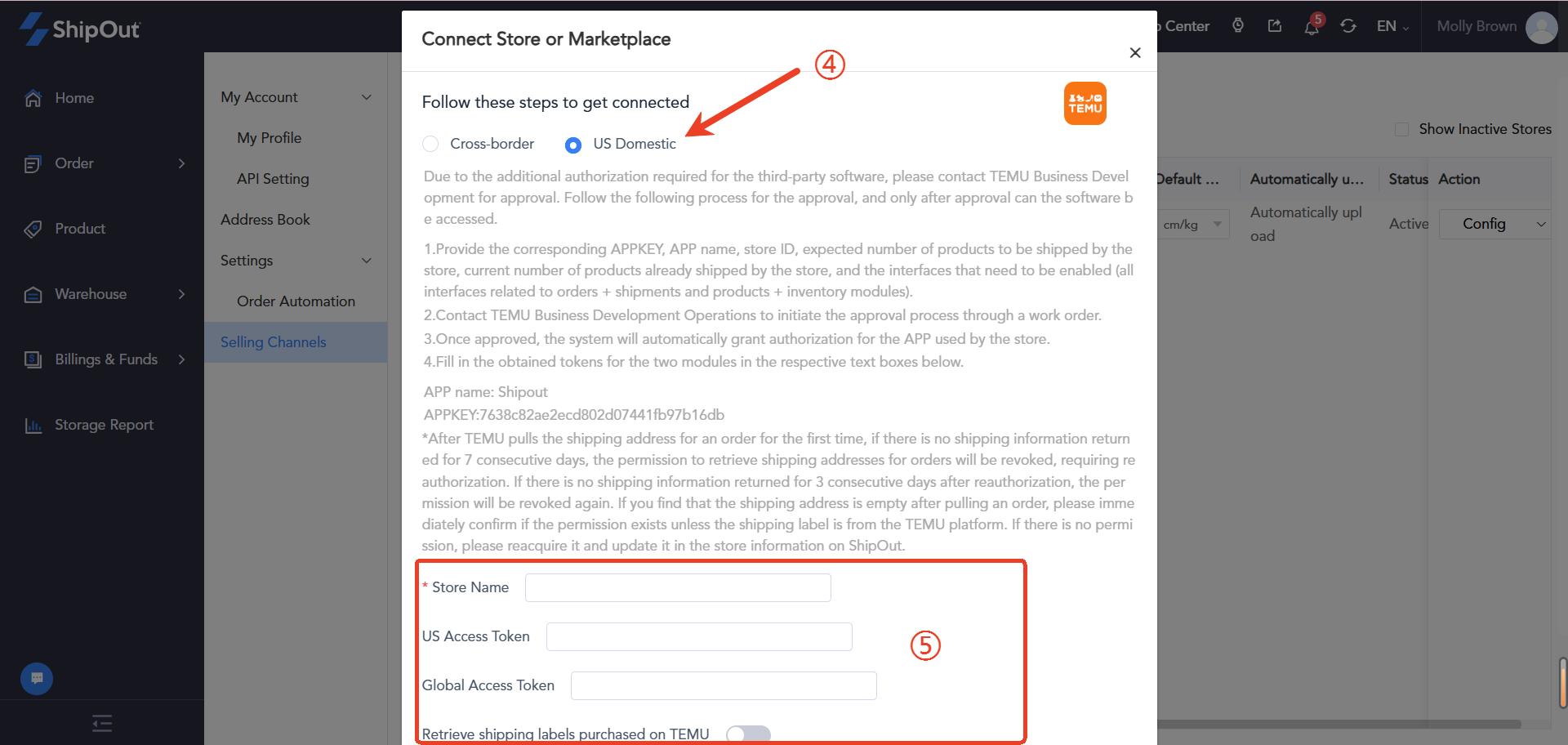
5. Choose the US Domestic Store option
Paste the Access Token you obtained in Step 1 into the corresponding text box
Please select your token type according to your business scenario: [United States] or [Global], then obtain the corresponding [US Token] or [Global Token]
If you want to use Temu’s official shipping labels, enable the “Retrieve shipping labels purchased on TEMU” toggle button
Click the Connect to complete the authorizatio
Step 3: Configure Warehouse Mapping
This is not a step that must be configured.If there are multiple warehouses in the temu store, and only one of them needs to have its orders imported into the system, you can refer to this configuration.
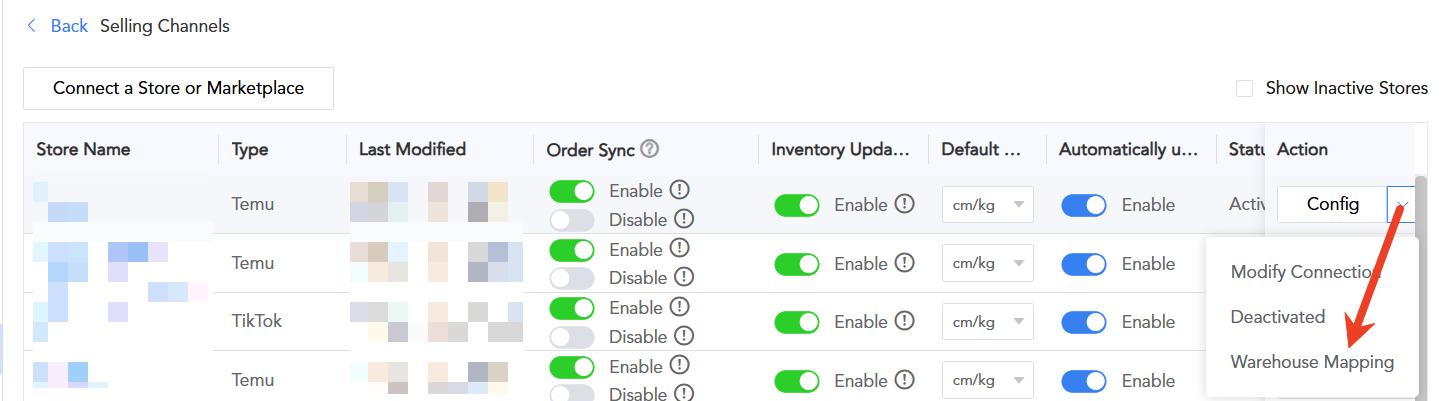
Go to the linked Temu domestic store list page
Click Edit Store on the right side
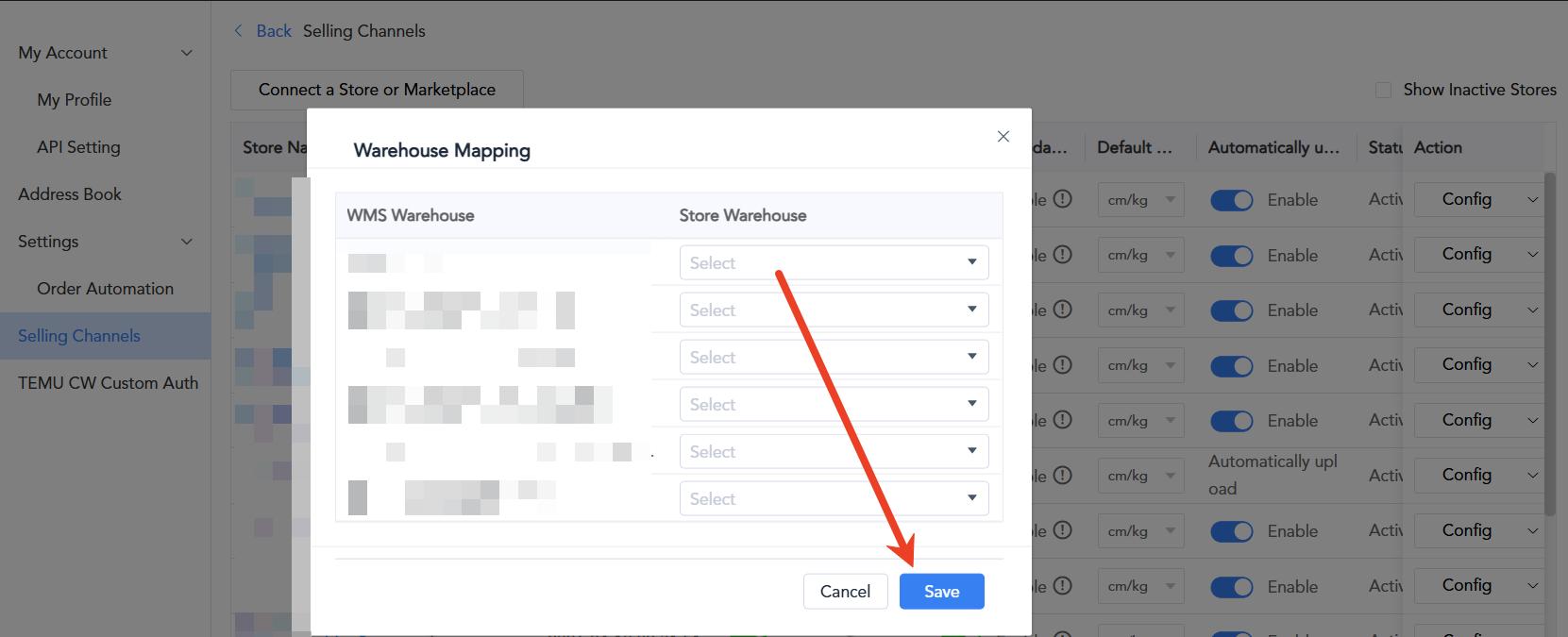
Select Warehouse Mapping
4. Choose your corresponding Temu store warehouse from the dropdown menu
5. Save the settings
Step 4: Sync Orders
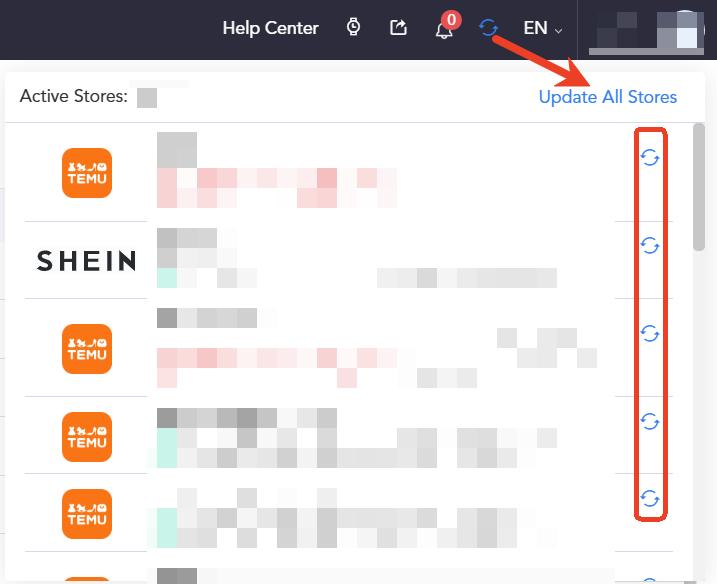
Click the Sync icon (circular arrows) in the upper right corner
Select Sync Store Orders
After successful synchronization, you will see the number of synced orders
Navigate to Order Management on the left sidebar
View all Temu orders under the “Pending” status
Step 5: Product Mapping
Product mapping creates a relationship between your Temu store products and the SKUs created in the ShipOut Product Management module.
How to map products:
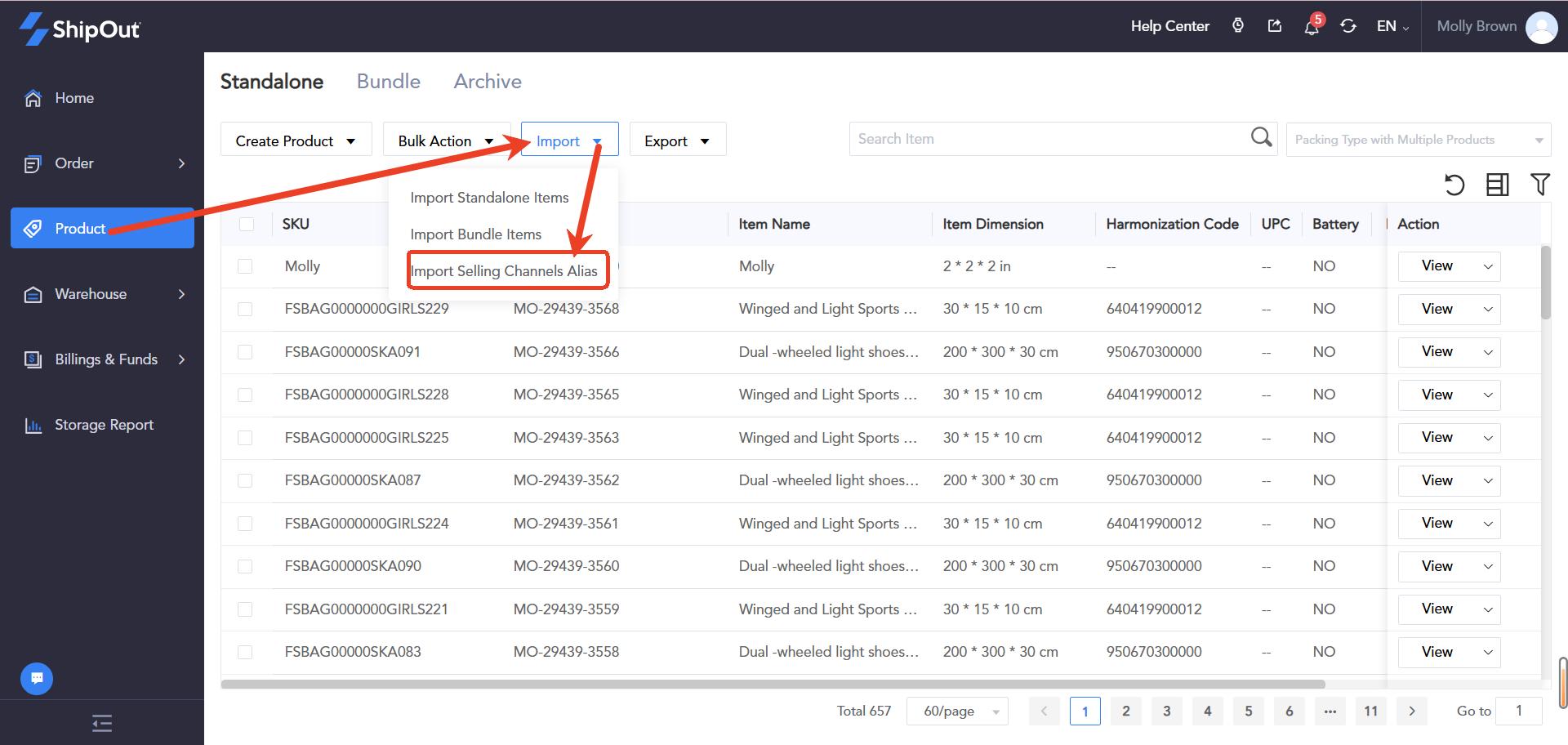
Ensure products are created in ShipOut’s Product Management section
Map Temu product SKUs to ShipOut SKUs
This allows the system to automatically recognize products when processing orders