How to Connect Your Temu Cross-Border Store in ShipOut?
This guide walks you through connecting your Temu Cross-border Store to the ShipOut system for automatic order and inventory synchronization to improve operational efficiency.
Step 1. Prerequisites
Permission Activation: Contact ShipOut Customer Service to activate permissions for free.
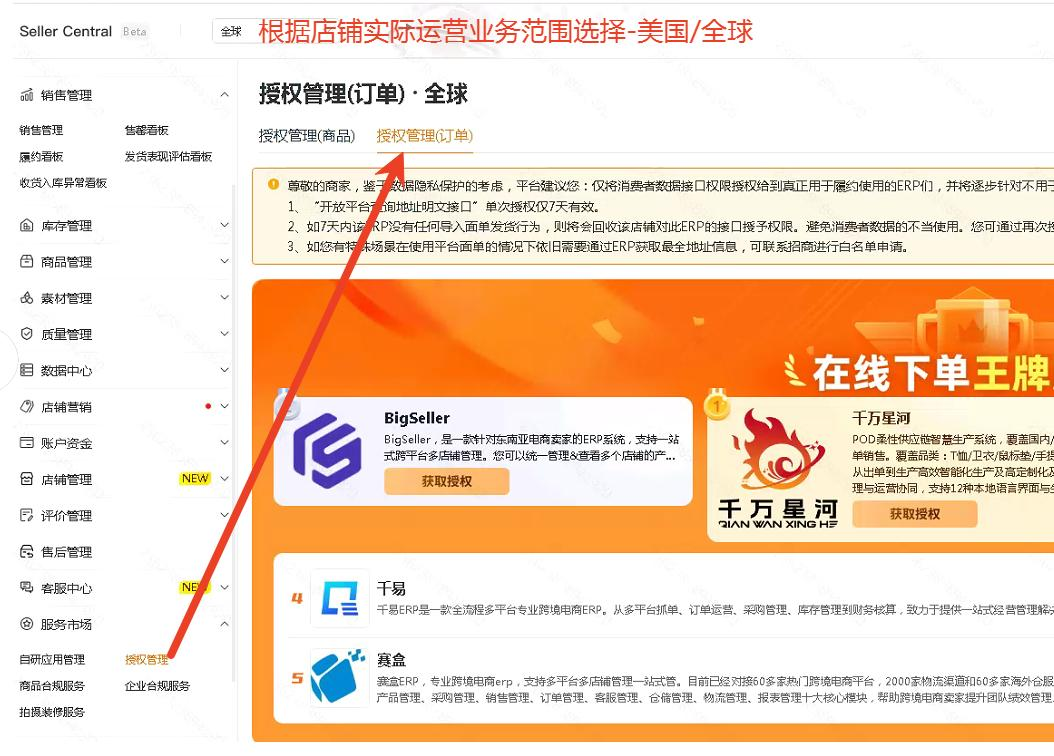
2.1.1 Log into the Temu Cross-Border Seller Center (top-left corner) and go to Order Management.
2.1.2 Select US or Global (Excluding US & EU Regions) based on your business scope to enter the Seller Center.
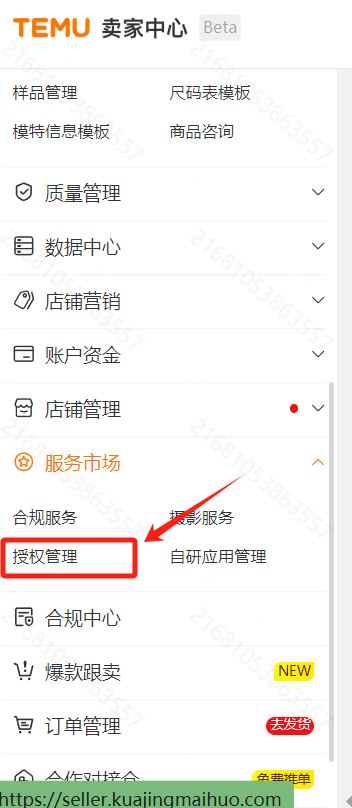
2.1.3 Navigate to Service Market > Authorization Management.
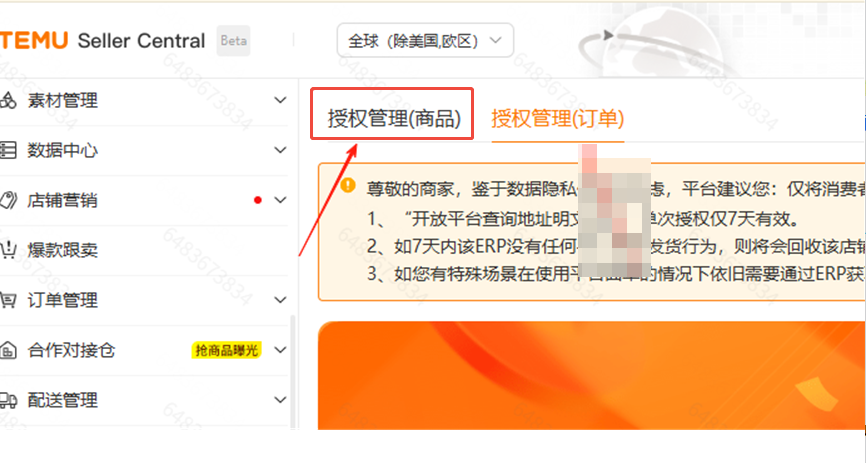
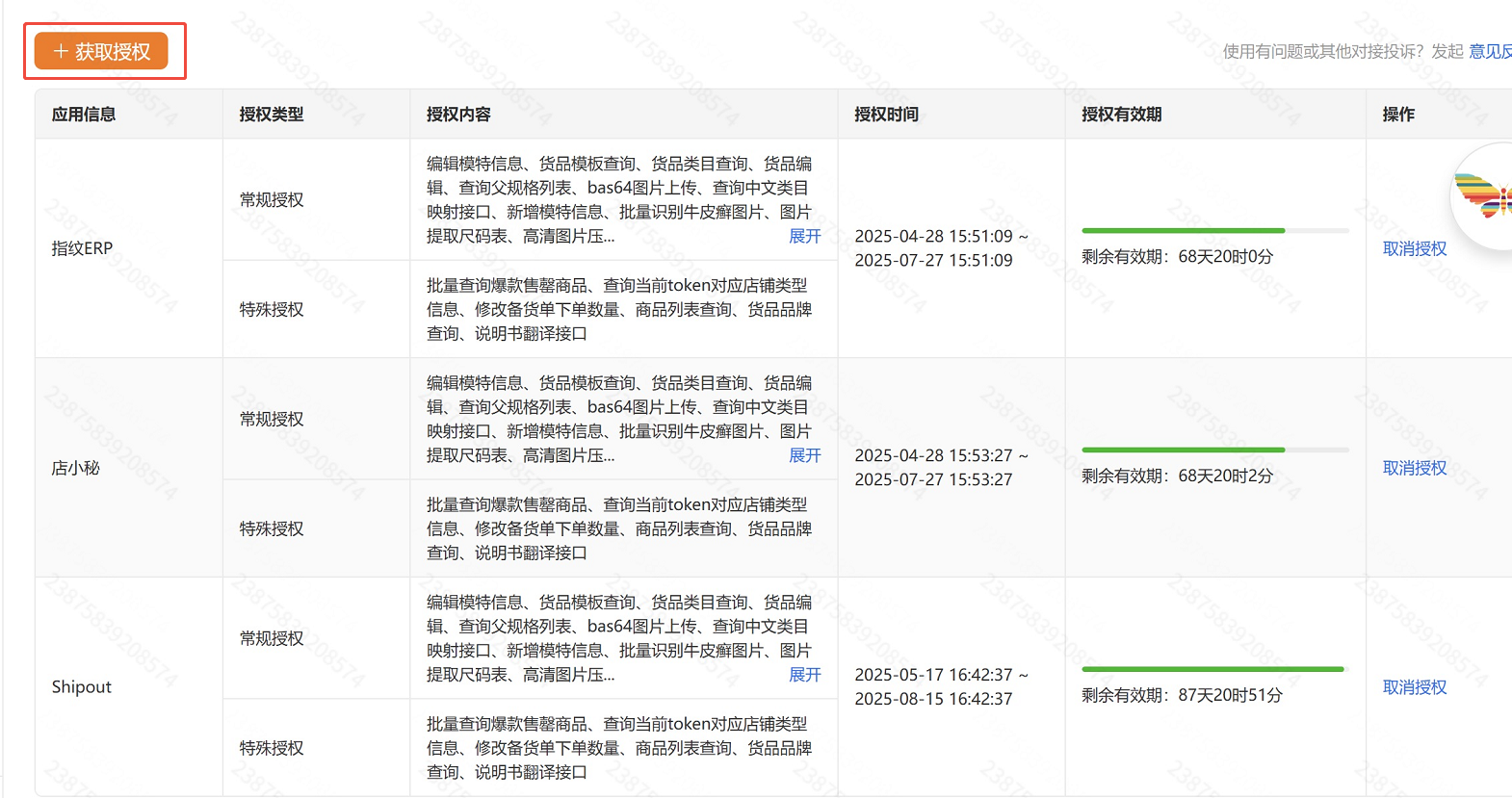
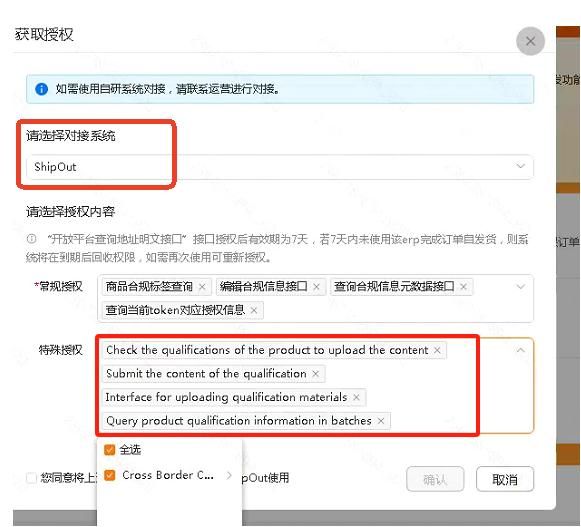
2.1.4 Go to Authorization Management (Products) > Get Authorization and select ShipOut.
Note: The prompt “Does not support online call waybill” is informational, not an error. You must purchase and generate the shipping labels on Temu first before syncing to ShipOut.
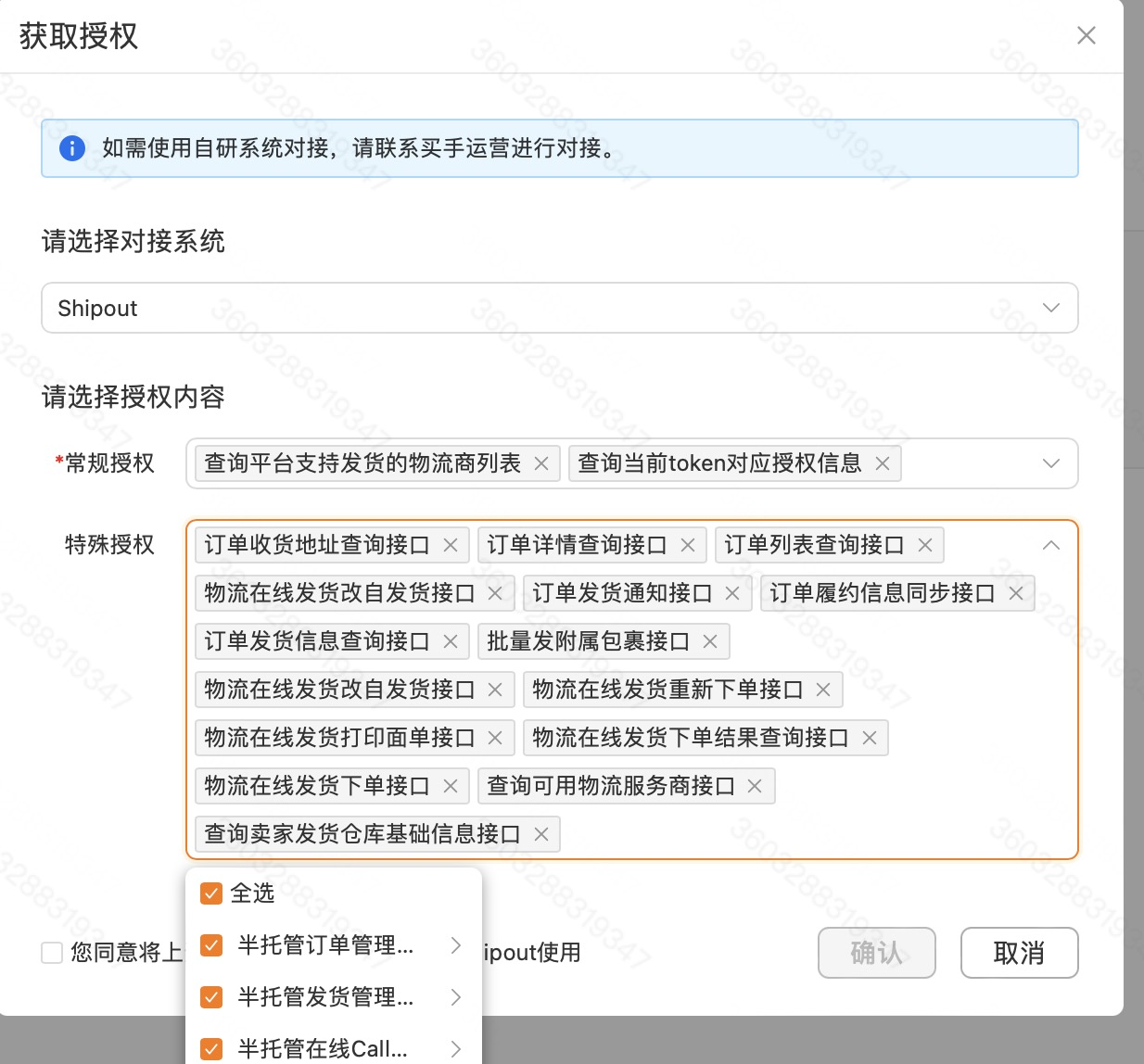
2.1.5 Check General Authorization and Special Authorization, agree to the terms and click Confirm.
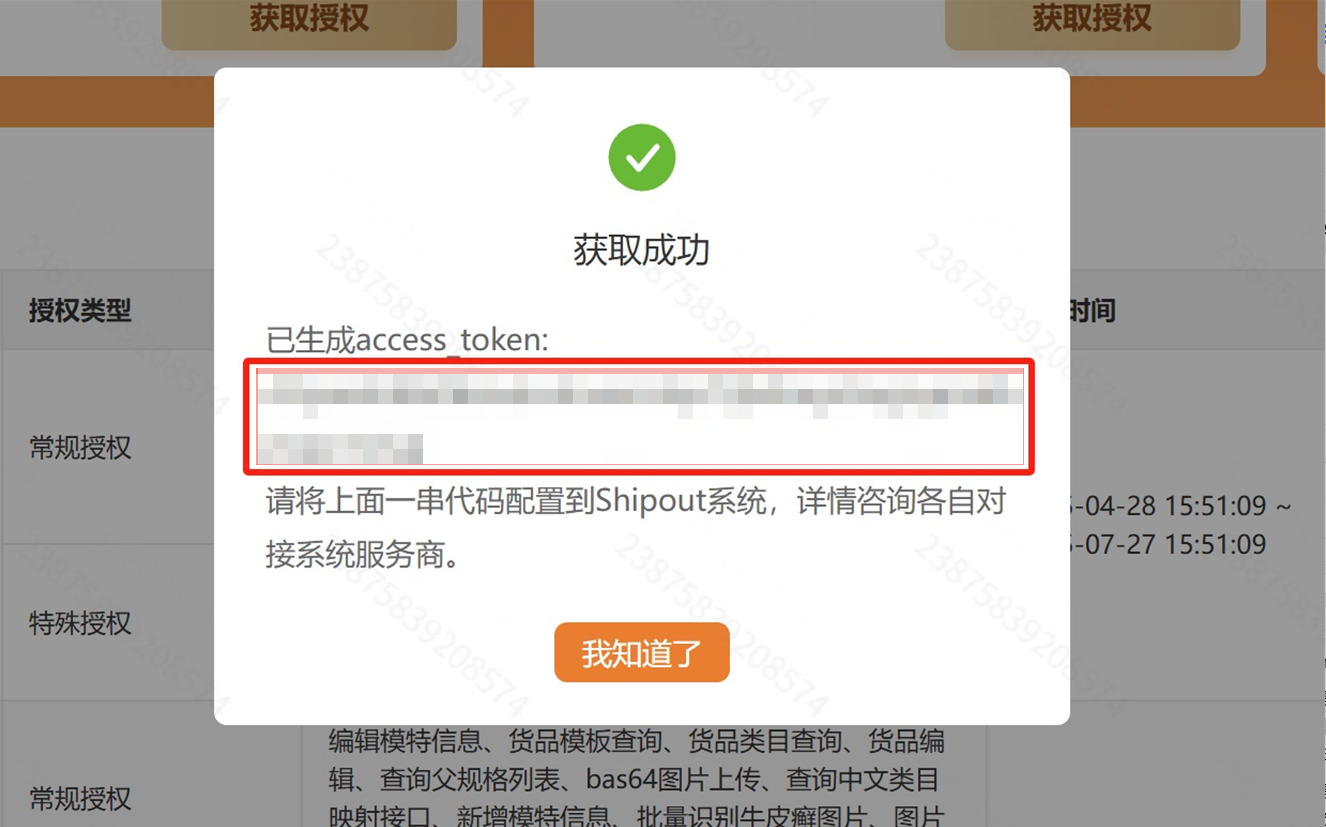
2.1.6 Copy the generated Access Token and save it as your Inventory Tokenfor ShipOut integration.
2.2 Get Order Access Token
2.2.1 Go to Authorization Management (Orders) > Get Authorization and select ShipOut
2.2.2 Check General Authorization and Special Authorization, agree to the terms and click Confirm.
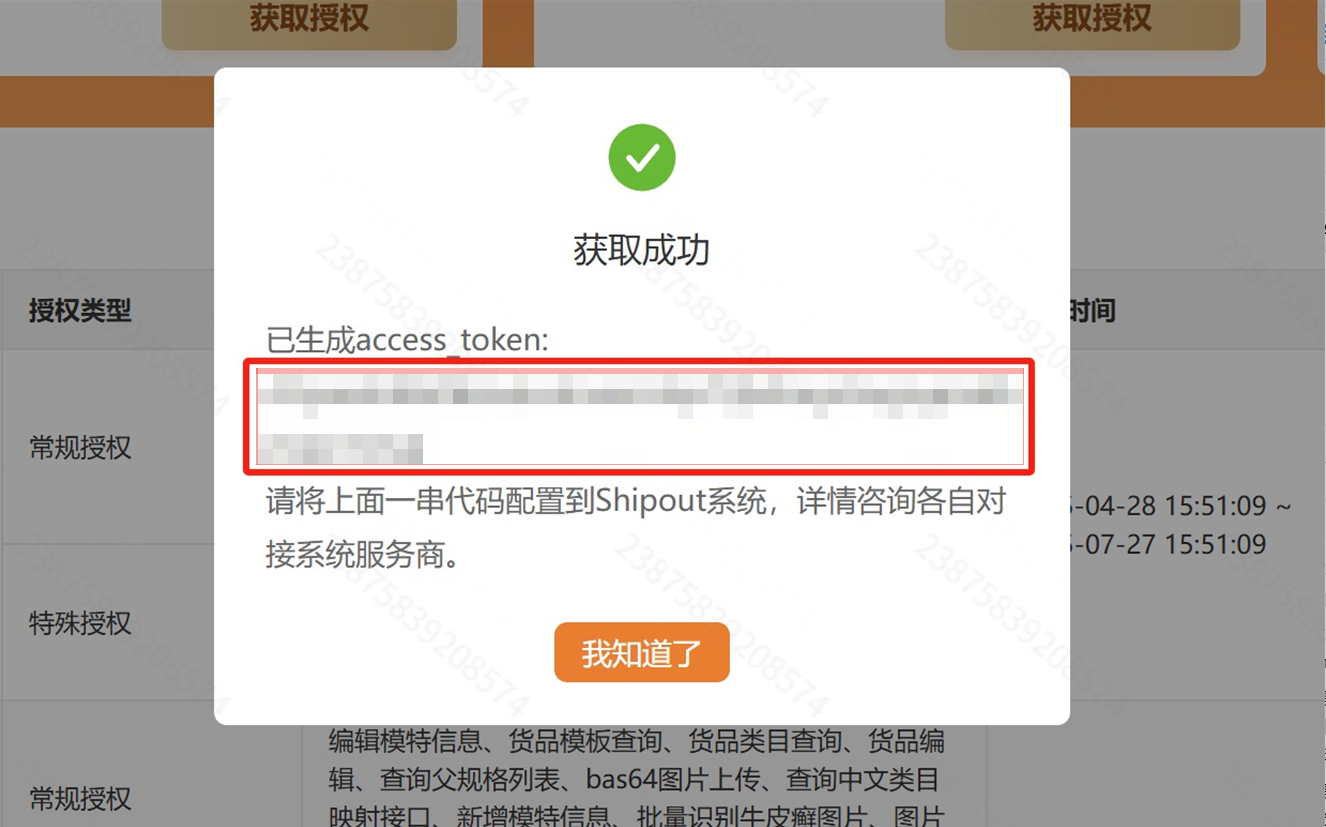
2.2.3 Copy the generated Access Token and save it as your Order Access Token for ShipOut integration.
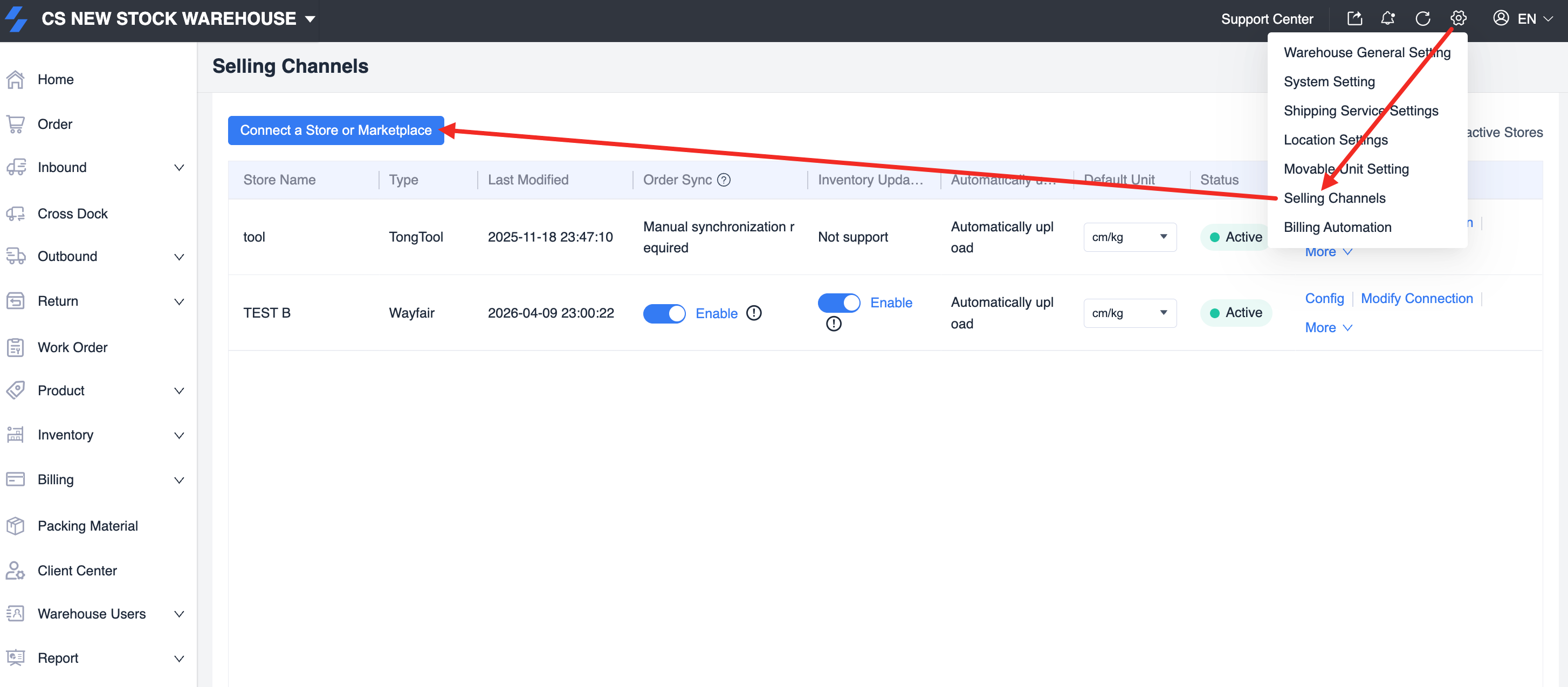
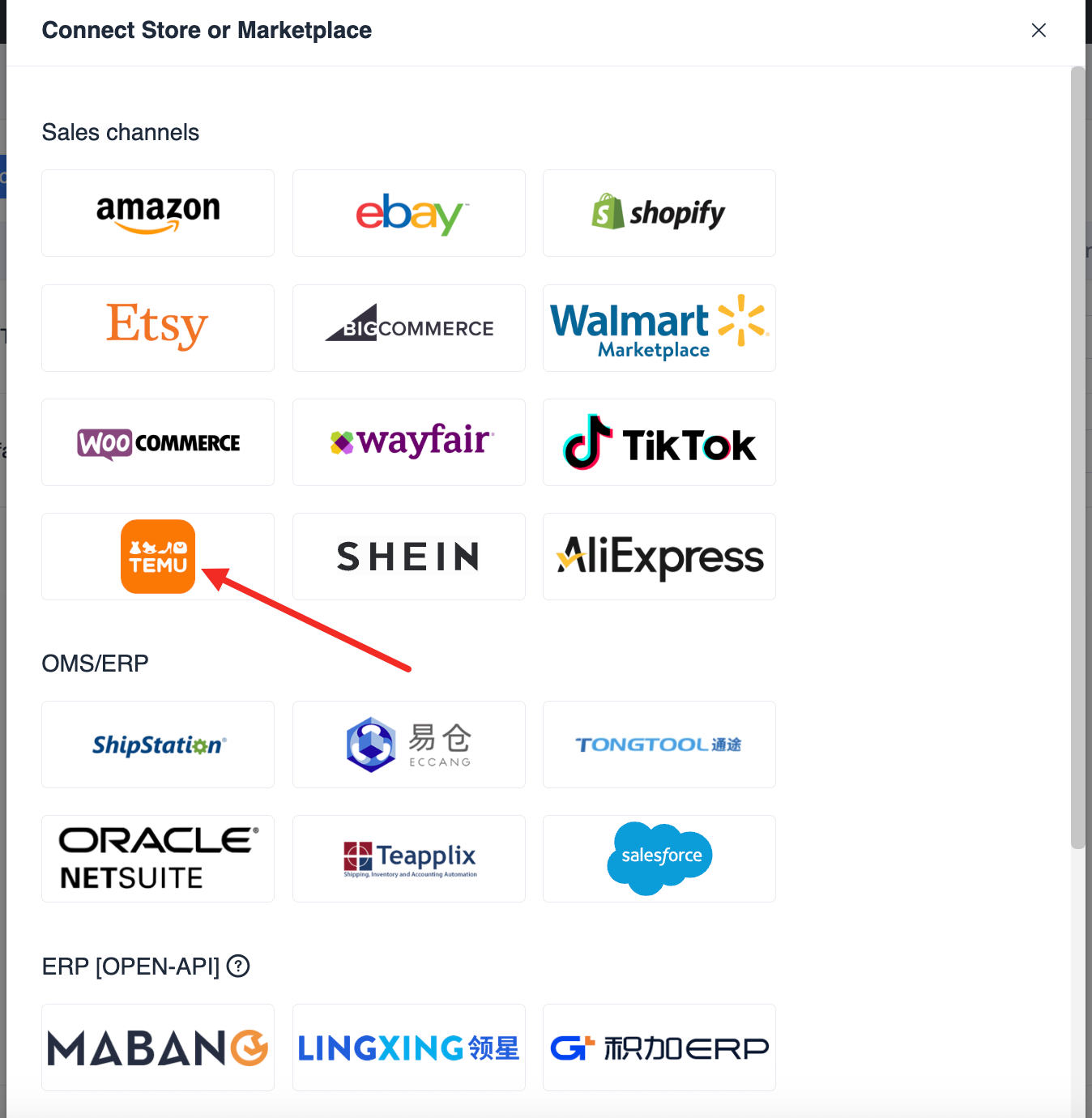
3.2 Go to Settings > Selling Channels in the top-right corner, then click Connect a Store or Marketplace. Find and select the Temu icon from the platform list.
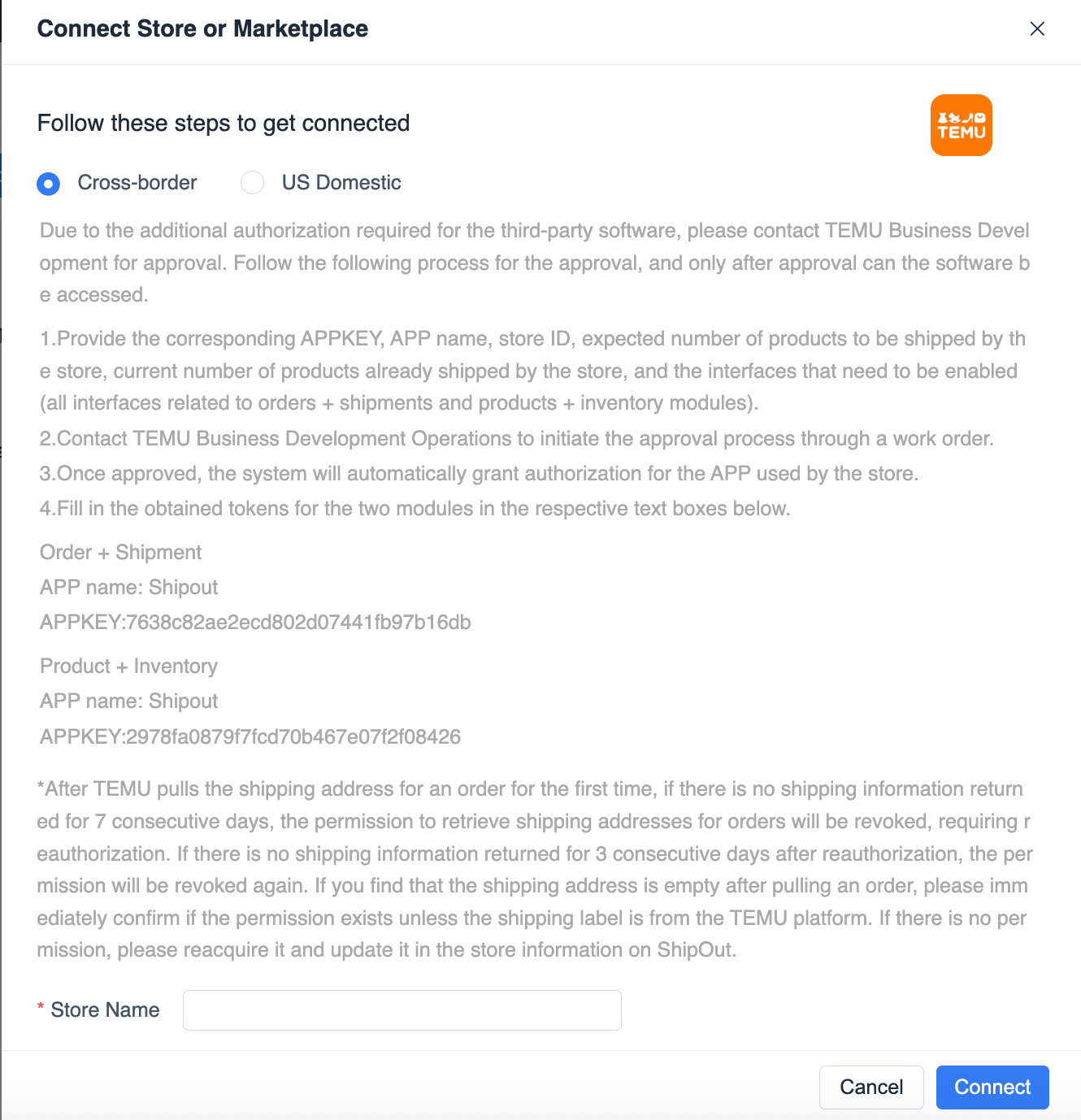
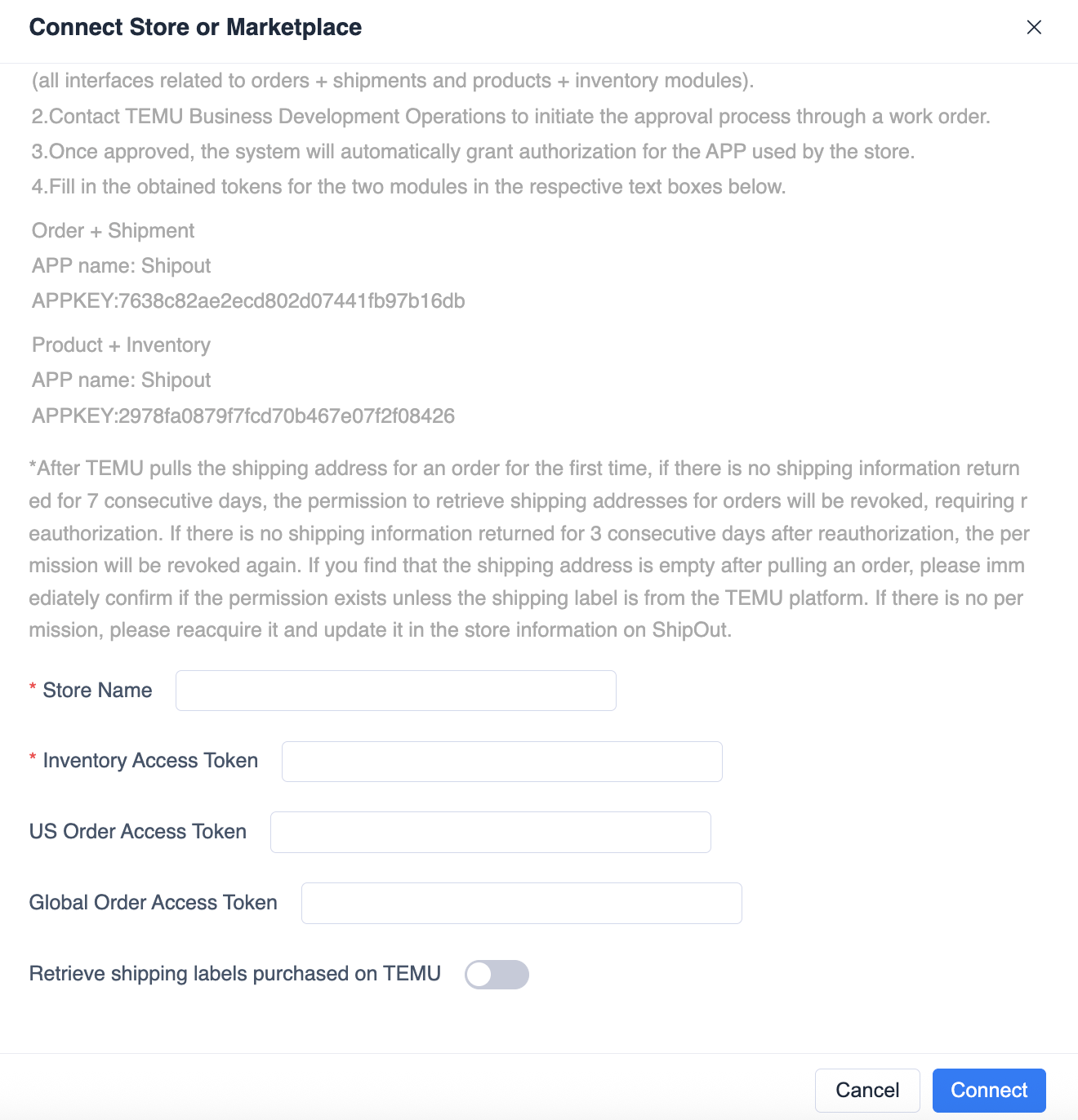
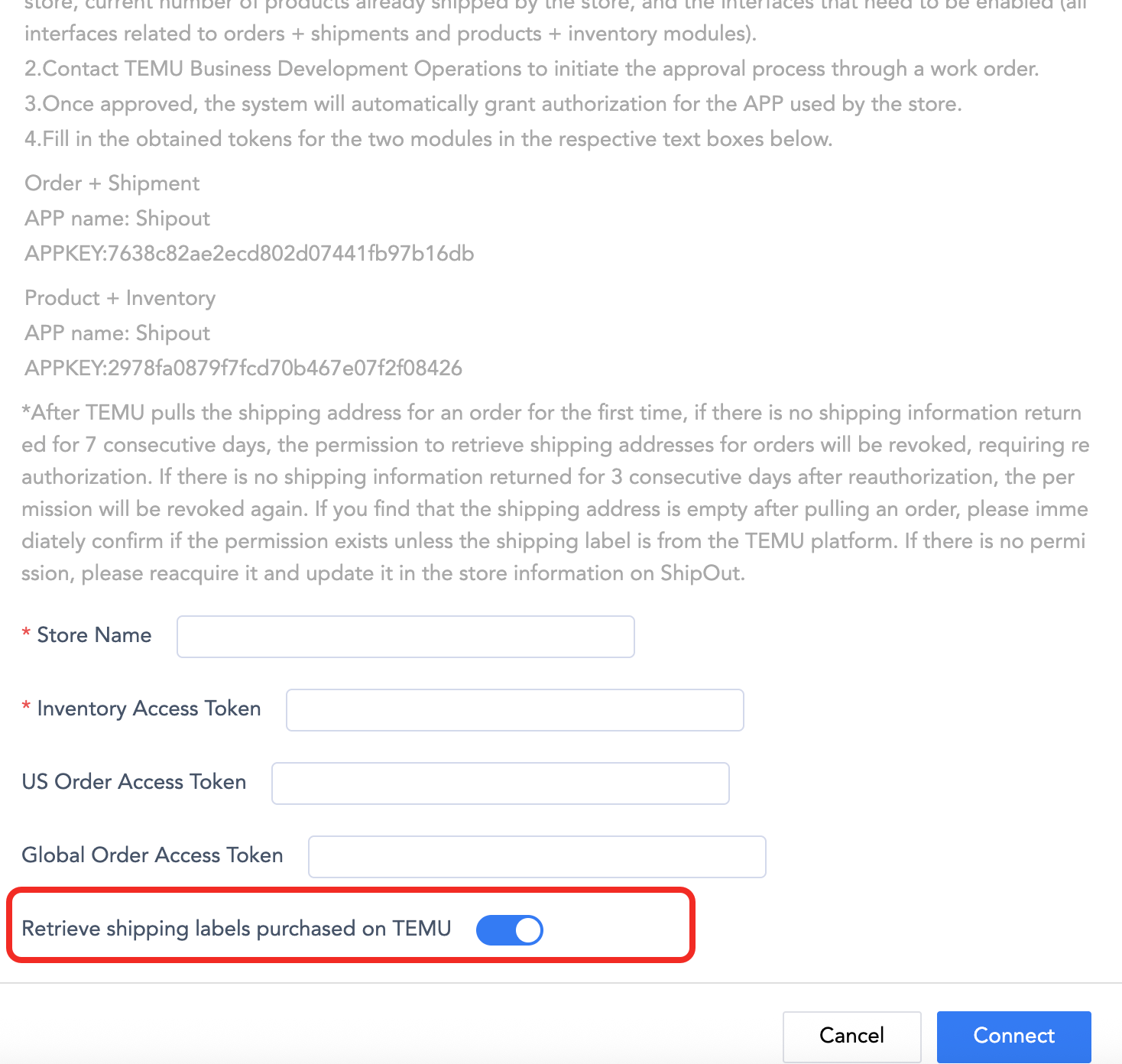
3.3. Enter Authorization Information
Input a custom store name (for internal identification).
Paste the saved Inventory Access Token and Order Access Token.
Toggle on Retrieve Shipping labels on Temu as needed.
Click Link to complete integration.
Step 4. Verify Temu Store Connection Status
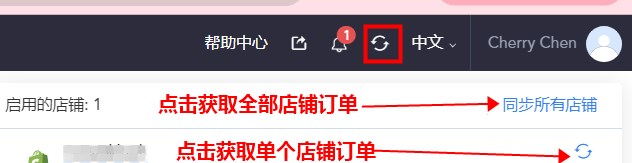
4.1 Sync Orders
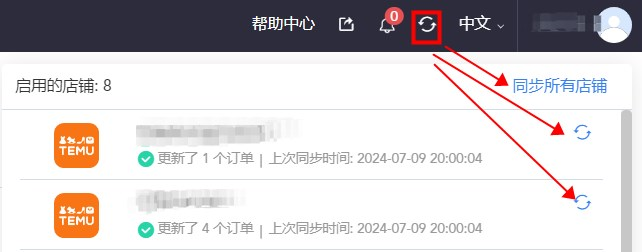
Click Sync Store Orders in the top-right corner.
Confirm successful order pulling and check the synchronized order count.
4.2 View Order List
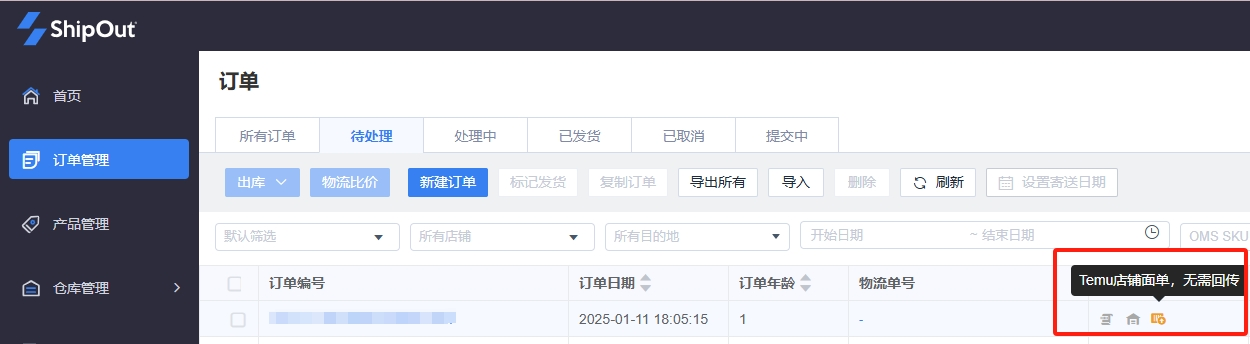
Go to Order Management > Pending in the left menu.
Verify that Temu orders have been imported successfully.
4.3 Use Temu Store Waybills, orders must be placed and shipped online on Temu first, then synced to ShipOut.
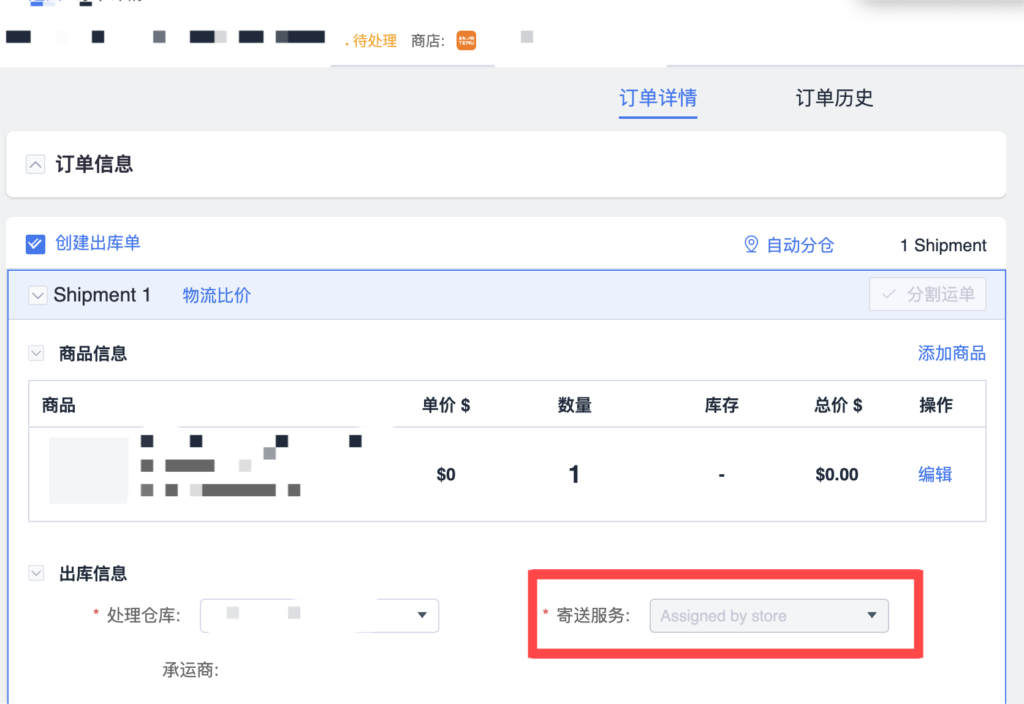
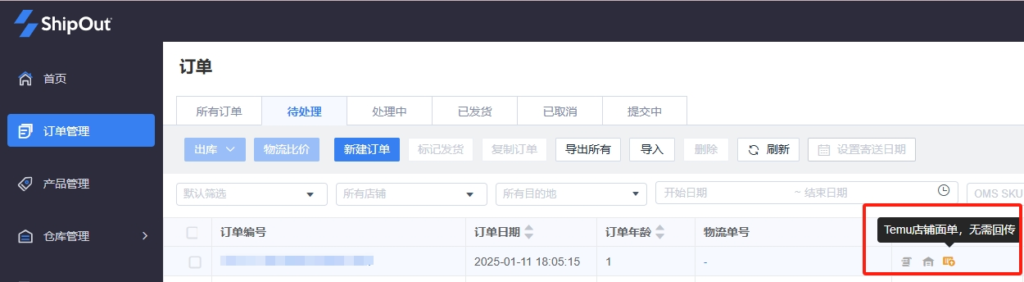
When order status is Shipped: The system shows “Temu store waybill, no need to return”; shipping service displays Assigned by store (uses Temu waybill for outbound).
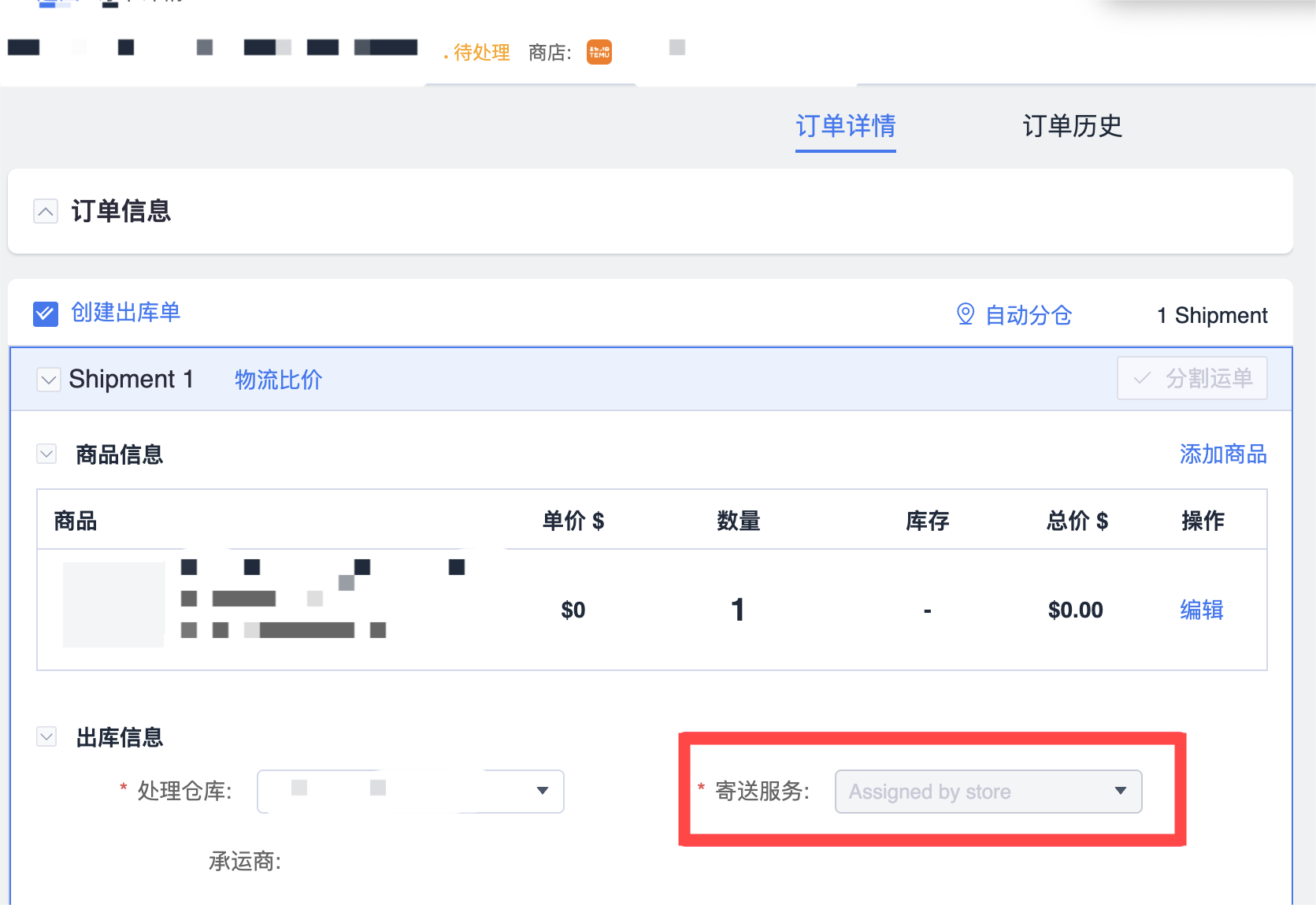
When order status is to be shipped: Order details show shipping service Assigned by store (uses Temu waybill for outbound).
Step 5. Product Mapping
Product mapping creates a relationship between your Temu store products and the SKUs created in the ShipOut Product Management module.
How to map products:
Ensure products are created in ShipOut’s Product Management section
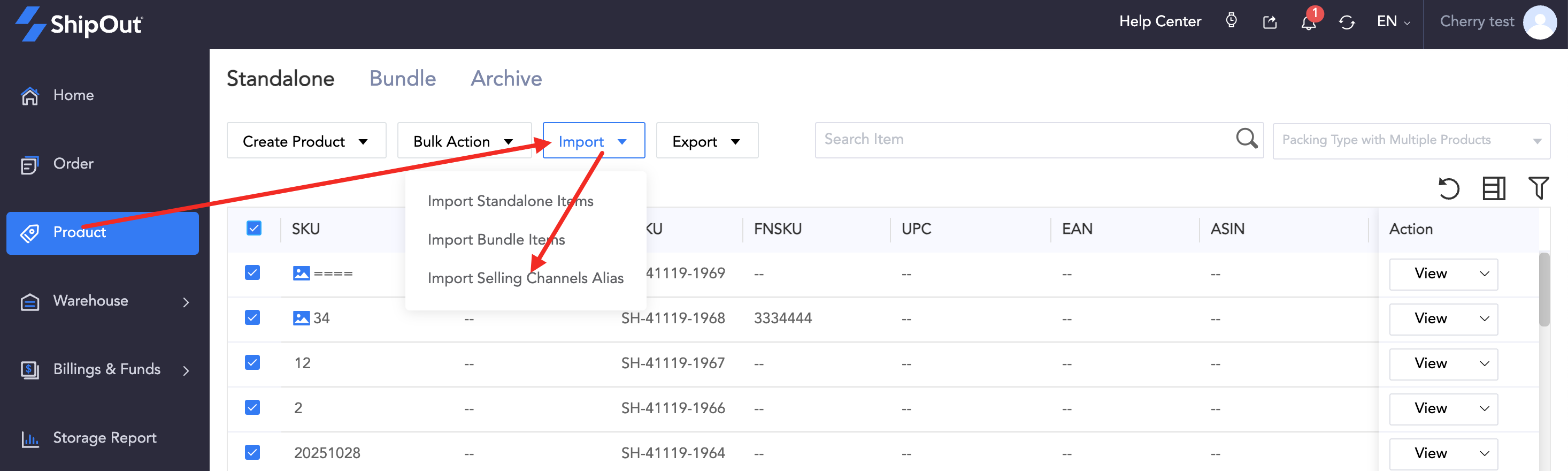
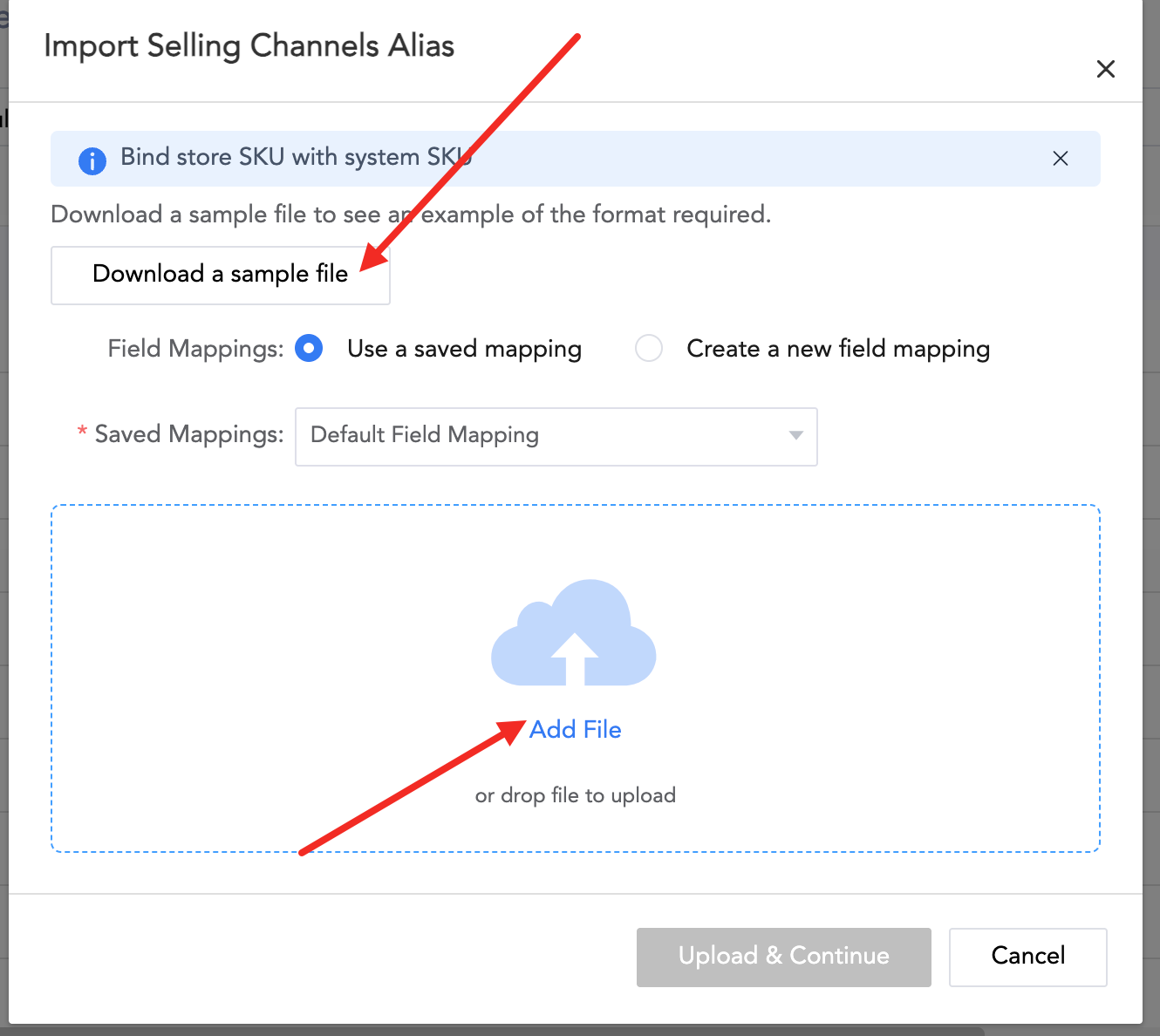
Map Temu product SKUs to ShipOut SKUs. Use Temu’s Product SKU ID or SKU Code as the Store Alias SKU for mapping
This allows the system to automatically recognize products when processing orders
Step 6. Obtain Temu Shipping Labels (Required for Using Temu Waybills)
6.1 Enable toggled on “Retrieve Shipping Labels Purchased on Temu” when connecting the store.
6.2 Workflow
Complete Online Order & Ship on Temu to purchase the Temu waybill.
Log in to ShipOut and click Sync Store Orders.
Confirm shipping service changes to Assigned by store in order details.
Click Submit Outbound; the system will pull the Temu waybill and send it to the warehouse.
Important Notes
Do NOT enable ShipOut’s Auto-Submit Outbound if using Temu waybills.
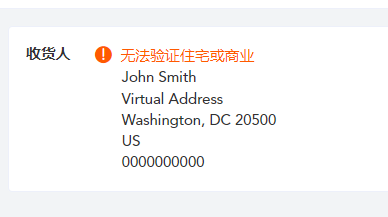
Shipping addresses for orders with Temu waybills will show as virtual addresses in ShipOut (hidden by Temu), which does not affect delivery or timeliness.
FAQs
Q1: Why do shipped orders enter ShipOut after enabling “Pull waybills purchased on Temu”?
After clicking Online Order & Ship on Temu to purchase the waybill, the order status changes from To be shipped to Shipped directly. ShipOut pulls these shipped orders for warehouse fulfillment.
For previously fulfilled orders pulled into ShipOut: Select them and click Mark as Shipped; they will not be pulled again.
Orders with Delivered status on Temu will not be pulled into ShipOut.
Q2: How to sync inventory from only one warehouse to Temu?
Log into the ShipOut account which linked Temu Cross-border Store account.
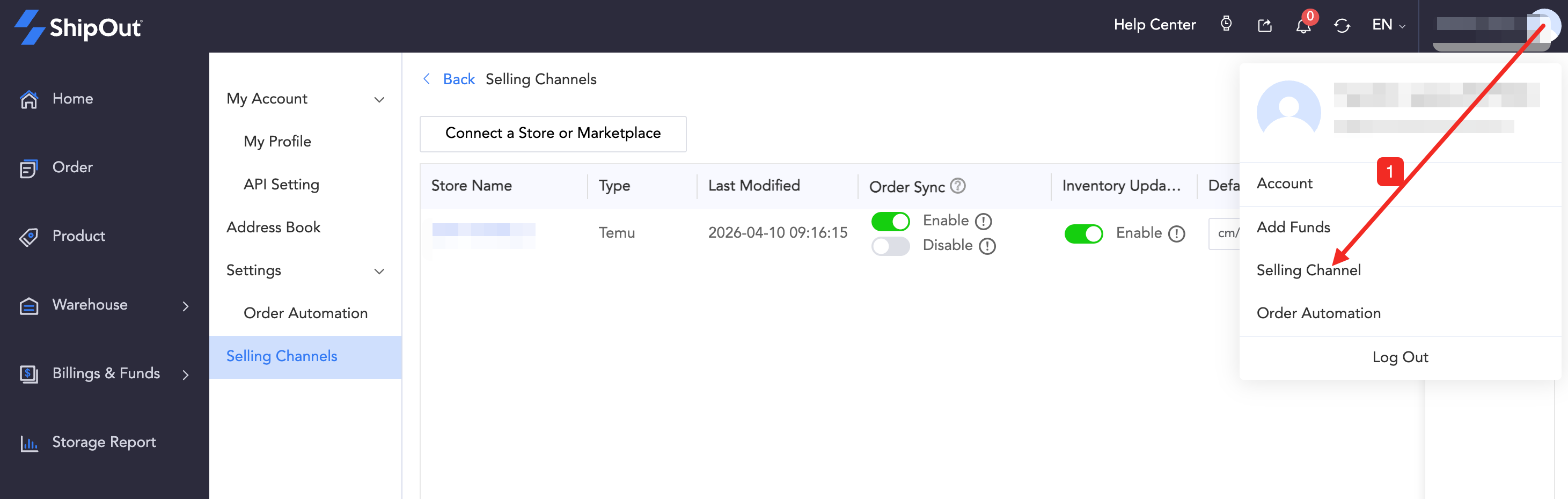
Go to Selling Channel in the top-right corner.
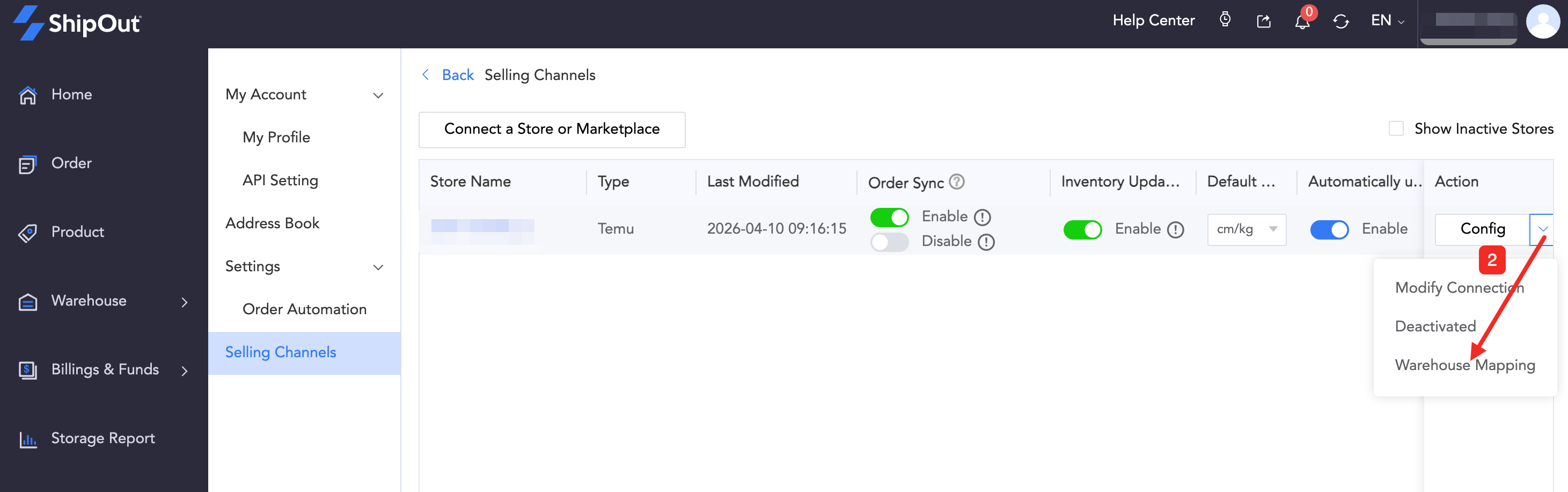
Edit the integrated Temu Cross-border Store.
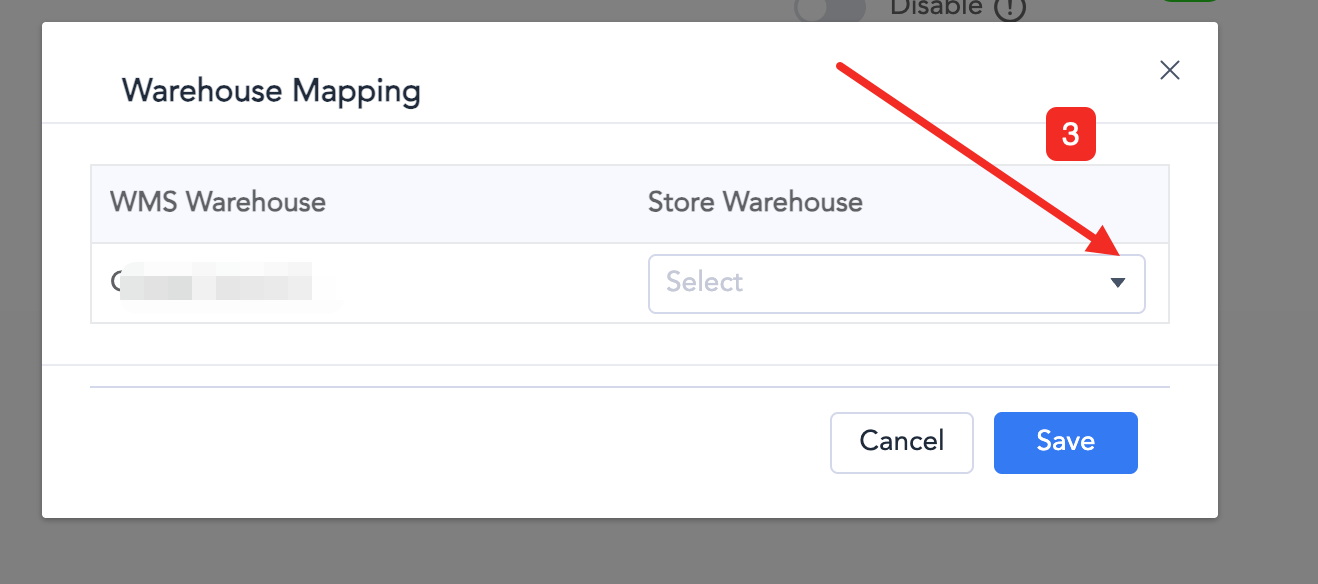
Go to Warehouse Mapping and select the ShipOut warehouse whose inventory you want to sync to your Temu warehouse.
Q3: Why doesn’t ShipOut recognize the Temu store waybill after I place and ship the order online?
For Shipped orders without waybill detection (excluding split/combined orders):
Re-authenticate the store in ShipOut (no field changes needed; just click Link again) and re-sync store orders.
For To be shipped (delayed shipping) orders without waybill detection (excluding split/combined orders):
Wait 10 minutes and retry Sync Store Orders; the system should recognize the Temu waybill.