To ensure a sales account can view assigned OMS customers and their respective documents, the following permissions must be granted:
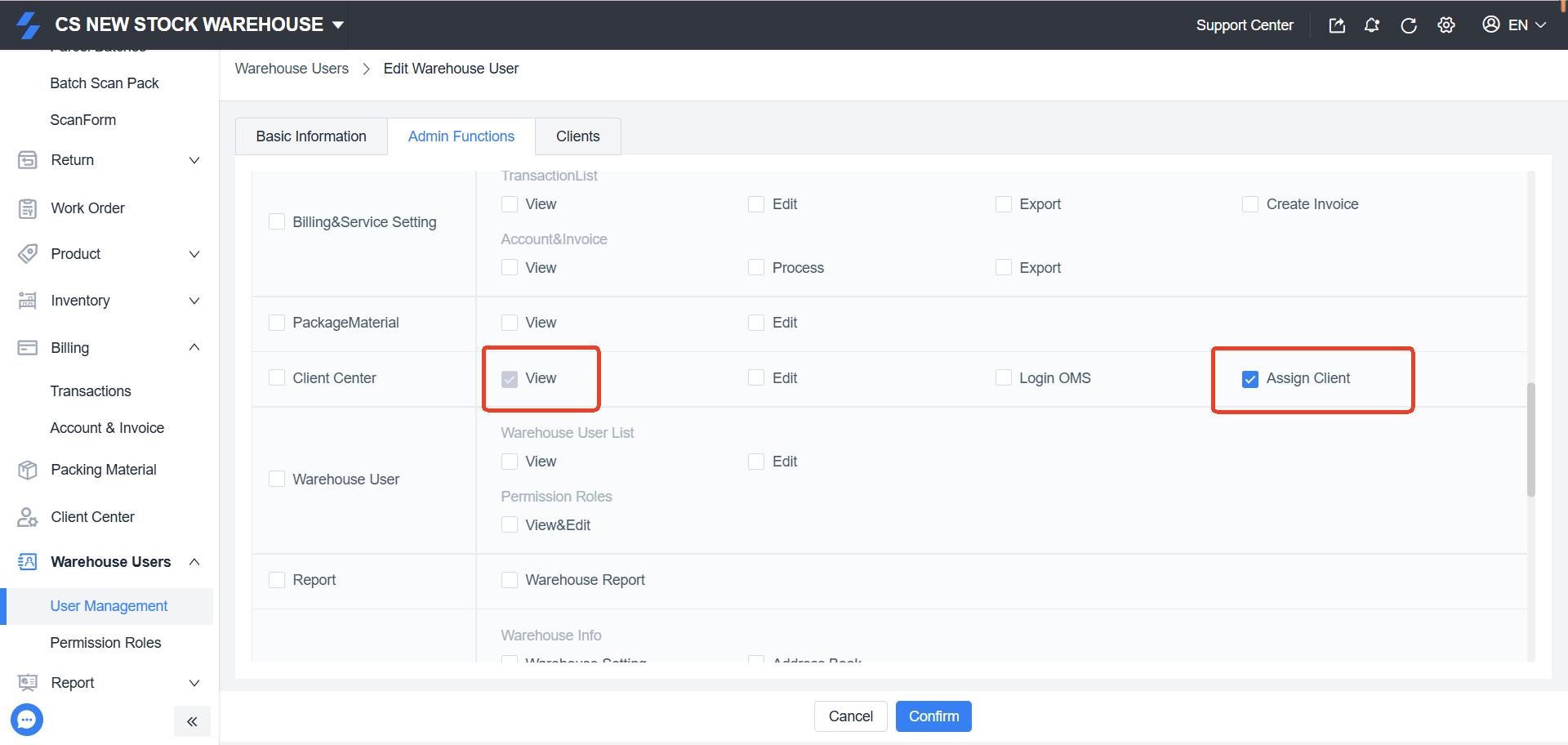
Customer Management: “View and Assign OMS Customers” permission.
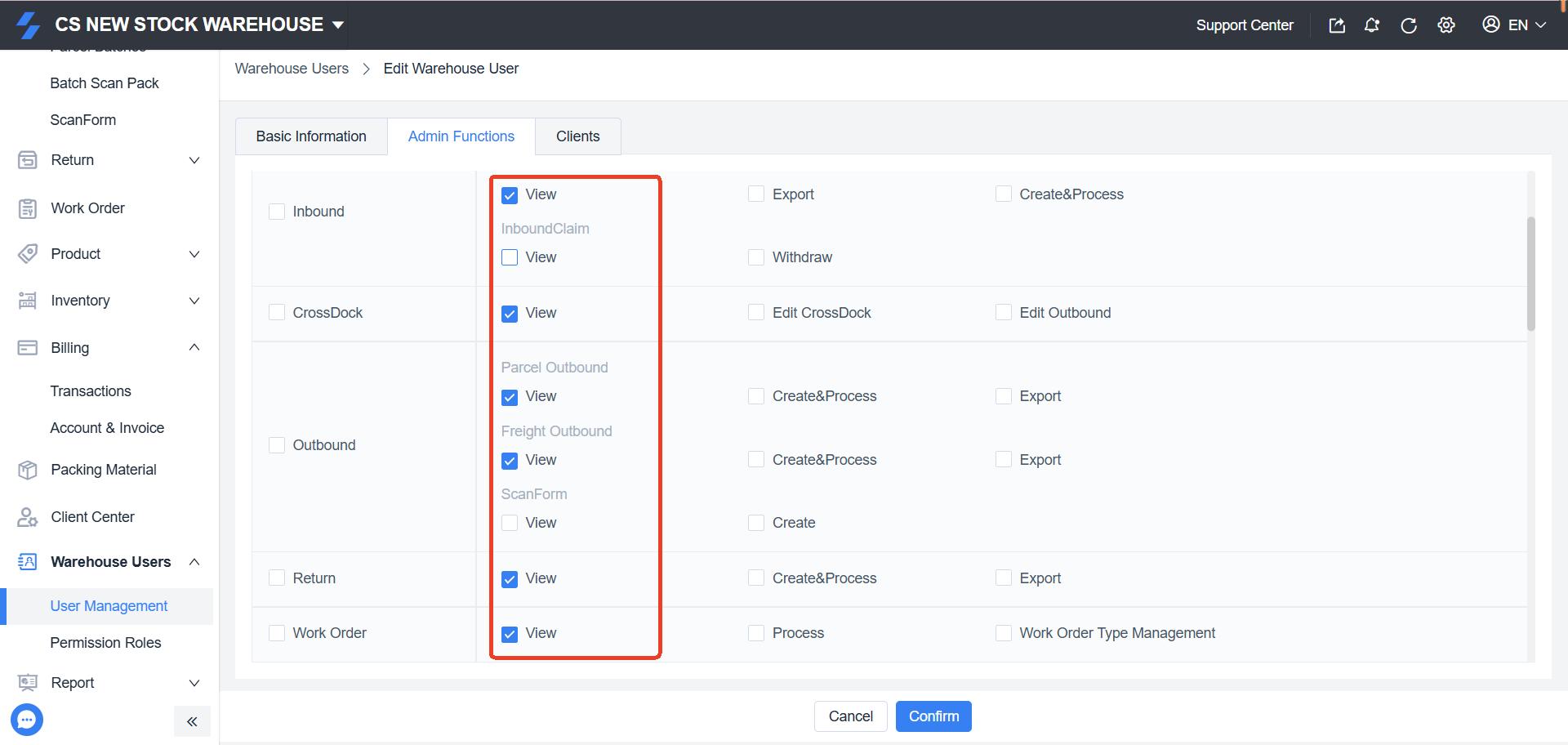
Document Visibility: Viewing permissions for “Inbound Orders” and “Outbound Orders.”, etc.
Assigning Specific OMS Customers
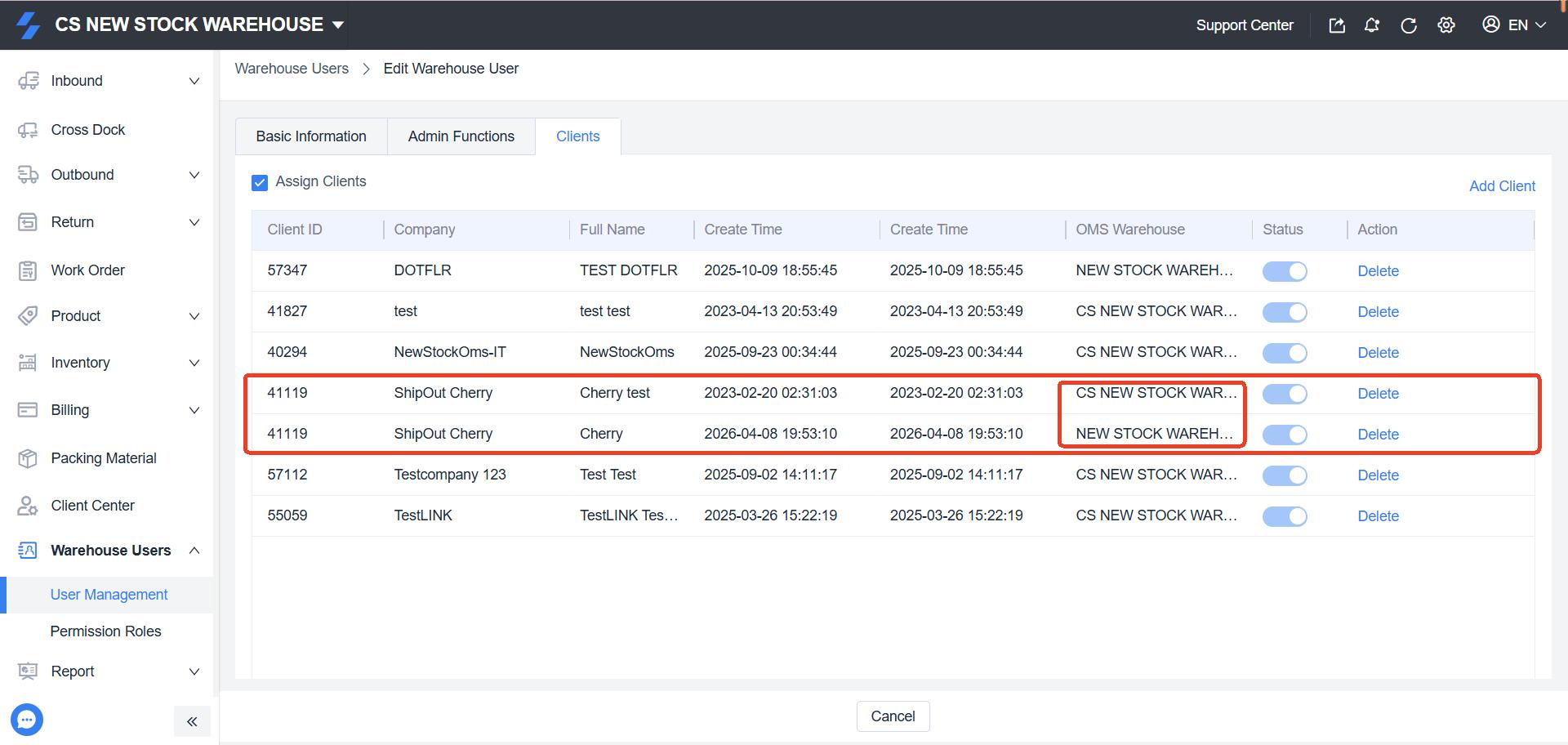
Important Note: > OMS assignments must be performed on a per-warehouse basis. If an OMS is linked to multiple warehouses, the administrator must assign that OMS account to the employee for each individual warehouse. Otherwise, the employee will only be able to view the OMS data in the warehouses where the assignment was completed.
Operational Steps:
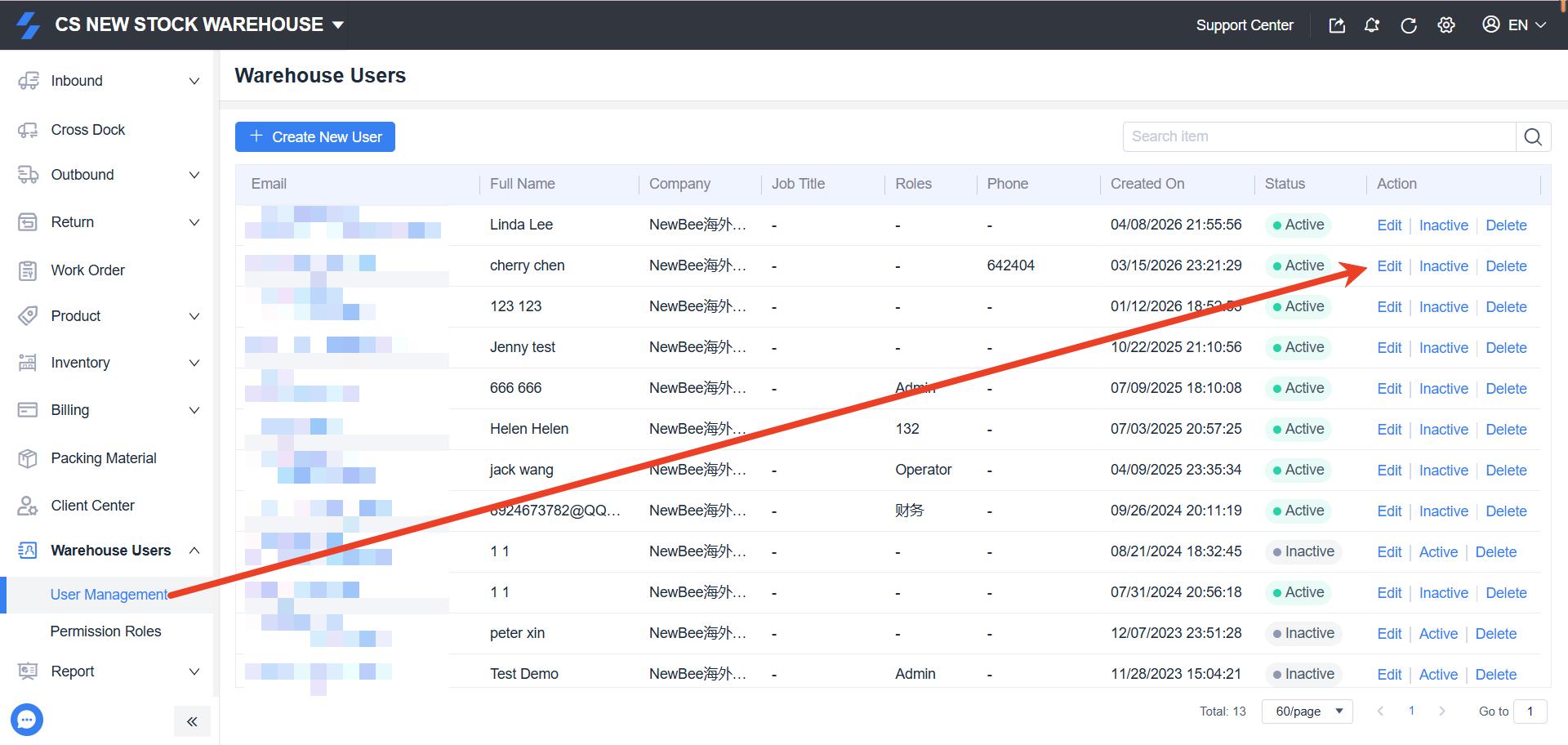
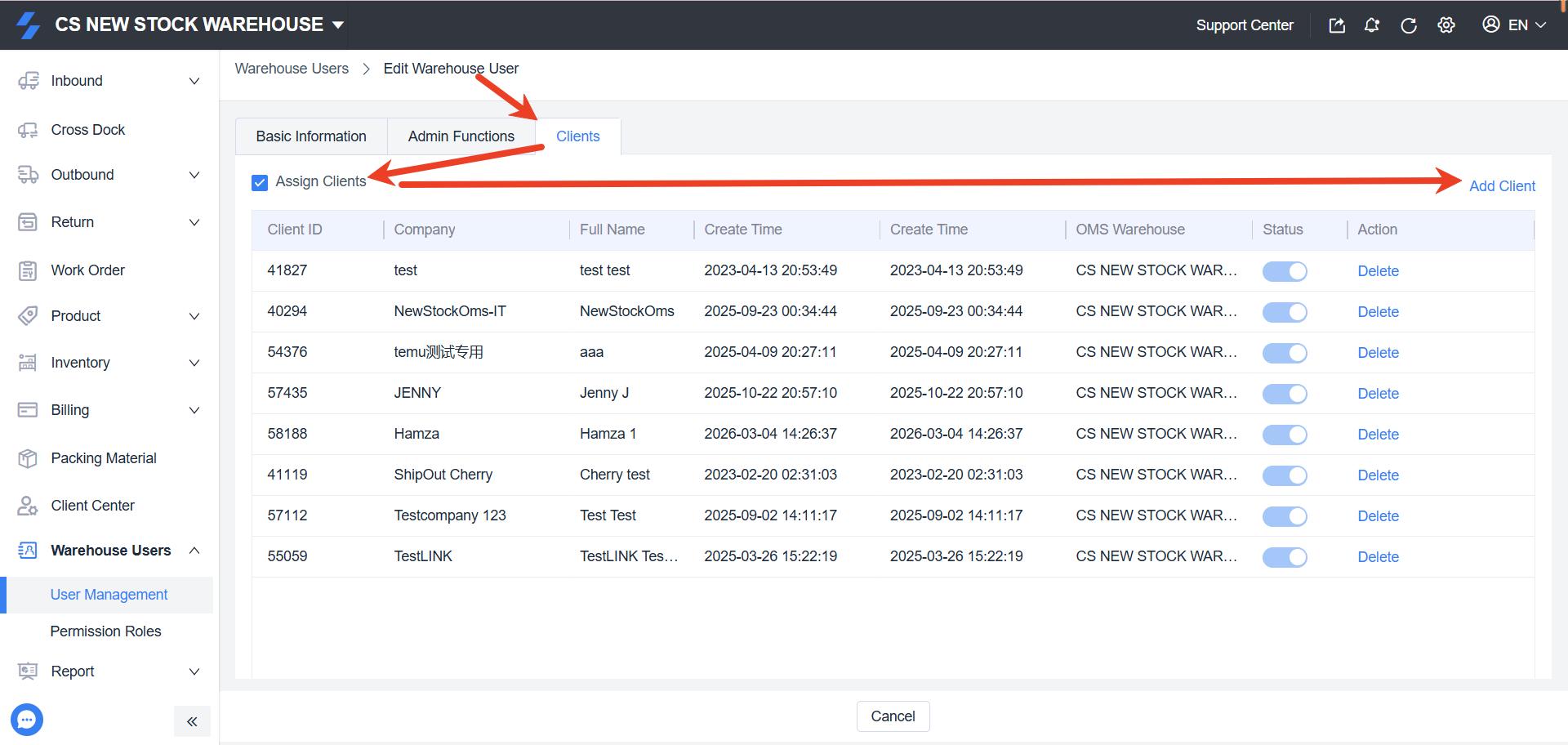
Locate the employee account that requires OMS customer assignment.
Click Edit Warehouse User.
3. Switch to the Customer tab.
4. Enable the Assign Customer toggle/button.
5. Click Add Customer on the right-hand side.
6. This action assigns the OMS customers under the current warehouse to the selected employee account.
7. For Multi-Warehouse Setup: If the same OMS customer needs to be assigned to this employee across other warehouses, please switch to the respective warehouse in the system and repeat the steps above.
III. Post-Configuration User Experience
Once specific OMS customers are assigned, the employee account will have restricted visibility. Under the Inbound and Outbound modules, the user will only be able to view documents belonging to the assigned OMS customers. Data from any unassigned OMS accounts will remain hidden and inaccessible.
Once specific OMS customers have been assigned to the employee account, the configuration will take effect as follows:
Filtered Order Visibility: Under the Inbound and Outbound modules, the employee will only have access to orders and documents associated with their assigned OMS customers.
Search & Filter Restrictions: In the “Customer” dropdown filter within any order list, the employee will only see the assigned OMS accounts listed. All data related to unassigned OMS customers will be automatically hidden and remain inaccessible.
Data Isolation: This setup ensures that sales staff can focus exclusively on their designated accounts while maintaining strict data isolation between different OMS customers within the same warehouse.
Verification Steps:
Log out of the Administrator account and log in using the target Employee Account.
Navigate to the Inbound Order or Outbound Order list.
Verify that only documents belonging to the assigned OMS customers are visible in the records and filters.